IPTV on a Projector: Big Screen UK TV Done Properly
A practical UK guide to watching licensed IPTV on a projector, from streaming sticks and sound routing to picture settings for live sport.
Contents
- Why smart projector apps let you down
- Setting up IPTV on projector duty with a streaming stick
- Sound: get the audio away from the projector
- Ambient light: the daytime television problem
- Refresh rate and keystone: settings for live sport
- Broadband and bandwidth for a projector
- The verdict: treat the projector as a dumb display
A decent projector throws a cinema sized picture onto a blank wall for less than the price of a mid-range telly. Getting IPTV on projector hardware to behave is the tricky part. The built-in software on most models will fight you: app stores are thin and UK catch-up services go missing, while the speakers would embarrass a clock radio. This guide covers the setup that actually works. Put a streaming stick in the HDMI port, route the sound somewhere sensible, and change a few picture settings so live sport stays watchable. Every service named here installs straight from an official store. Nothing to load manually and nothing to sideload.
Why smart projector apps let you down
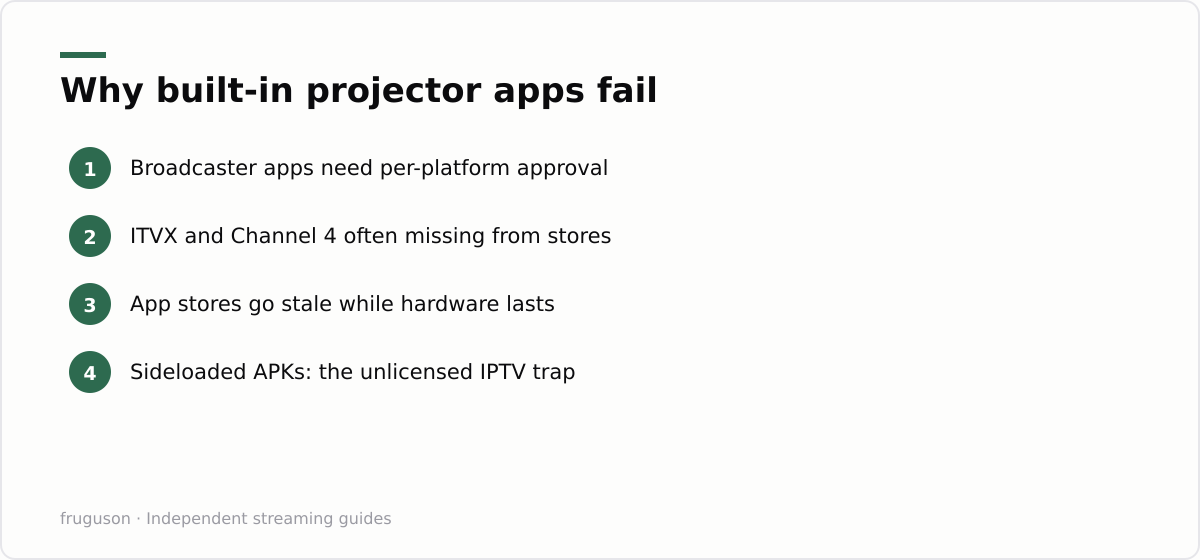
Most affordable projectors now ship with a version of Android and a home screen full of app tiles. It looks like a smart TV. It rarely behaves like one. Broadcasters certify their apps platform by platform, so BBC iPlayer, ITVX, Channel 4 and Channel 5 only appear on devices they have tested and approved, and small projector brands seldom make that list. You might find Netflix in the store, but only a mobile build that ignores the remote, or Prime Video capped below HD because the projector lacks the right DRM certification.
Updates are the other half of the problem. A projector lasts for years, while the app store baked into it often goes stale within two. When ITVX replaced the old ITV Hub, plenty of budget smart devices never received the new app at all. The hardware still worked perfectly. The telly on it quietly died.
Forums will tell you to sideload APK files to fill the gaps. Skip that advice. Apps installed that way sit outside the official store, never update themselves, and often break after a system update with no easy fix. Stick to the apps in your streaming device’s own store, or cast from a phone for anything the device cannot install natively — it is more reliable and nothing to maintain.
Setting up IPTV on projector duty with a streaming stick
Fitting a projector streaming stick takes about fifteen minutes and removes every app problem in one go. The stick carries the full UK app line-up and keeps itself updated for years. Nobody ever sees it either, since it hides behind the projector.
- Choose the stick. An Amazon Fire TV Stick, a Google TV Streamer or a Roku stick all carry iPlayer, ITVX, Channel 4, 5, Now, Prime Video, Netflix and Pluto TV. Prices run roughly £30-60 depending on the model, checked July 2026.
- Plug it into HDMI. Use the short extender lead in the box if the projector’s port sits in a recess; it also helps Wi-Fi reception.
- Power it from the projector’s USB port, then test. More on this below, because it is the step that trips people up.
- Connect to your Wi-Fi and sign in to your accounts. The stick maker’s phone app usually speeds up typing passwords.
- Install apps only from the official store. If a service is missing there, it is missing for a reason.
That USB power step deserves detail. Projector USB ports are wired for media playback and firmware updates, not for feeding a small computer, and many supply only 500mA where a modern stick wants a full amp. An underpowered stick boots fine but then reboots at random. Stutter during HD playback and a laggy Bluetooth remote are the other classic symptoms. Run it from the projector for an evening as a test. If anything odd happens, switch to the mains adapter that came in the box and the weirdness usually stops. Powering from the projector does have one genuine perk: the stick switches off with the projector rather than idling all day.
Once the stick boots, work through our guide to the best IPTV apps in the UK to decide which services deserve a place on your home row. Freely, the broadcasters’ newer live TV platform, currently lives inside supported smart TVs rather than sticks, so stick viewers get their live channels through the individual broadcaster apps instead.
Sound: get the audio away from the projector
Projector speakers are a caveat, not a feature. A typical unit fits one or two small drivers pushed to about five watts, aimed sideways from wherever the projector happens to sit. Dialogue sounds boxy at low volume and harsh at high volume, and there is no bass at all. Any home cinema TV setup built around a projector needs the sound handled separately, and there are four sensible routes.
The cleanest one reverses your instinct. Rather than plugging the stick into the projector, plug it into an HDMI input on a soundbar or AV receiver, then run a single HDMI lead from that device’s output to the projector. Audio never travels to the projector at all; video passes through untouched. This is how proper installations do it, and it sidesteps every lip-sync and format headache in one move.
HDMI ARC is the simpler alternative where your projector supports it. The stick goes into a normal HDMI port and the projector returns sound down its ARC socket to a soundbar. Check the port labels before buying anything, because plenty of budget projectors skip ARC entirely. Older kit can fall back on the 3.5mm headphone or optical output into powered speakers or an amplifier you already own. Bluetooth speakers are the last resort: convenient, but the wireless hop often delays the sound enough that mouths and words drift apart.
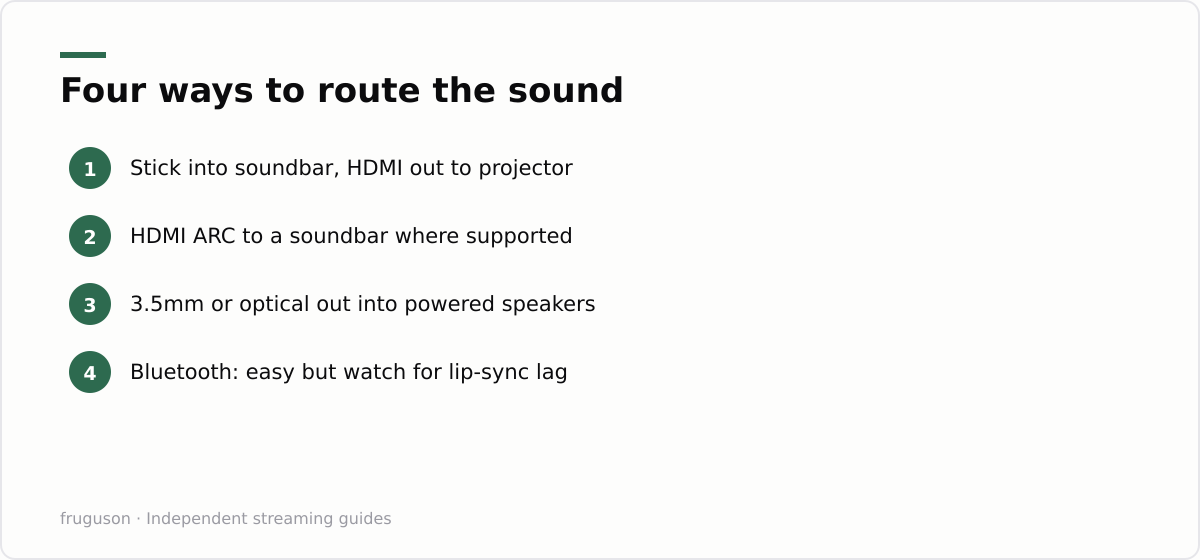
| Audio route | What you need | Verdict |
|---|---|---|
| Stick into soundbar, HDMI out to projector | Soundbar or receiver with HDMI passthrough | The cleanest full-time setup |
| HDMI ARC from the projector | A projector with an ARC port | One lead, easy, check compatibility first |
| 3.5mm or optical out | Powered speakers or an older amplifier | Great for reusing kit you own |
| Bluetooth speaker | Any Bluetooth speaker | Fine for news, risky for lip-sync |
Ambient light: the daytime television problem
Daylight is the enemy, and no marketing figure changes the physics. A telly makes its own light; a projector borrows the room’s darkness. Watching a bright studio show at midday with the curtains open is possible on a punchy model, but colours wash toward grey and dark scenes disappear altogether. Brightness claims on cheap projectors are also wildly optimistic, so treat the lumen figures on marketplace listings with deep suspicion.
Work with the room instead of fighting it. Blackout curtains transform daytime viewing more than any upgrade to the projector itself would. A matt white wall is genuinely fine to start with, while a proper screen adds contrast and evens out surface texture. Save daytime viewing for bright content like news and quiz shows, and keep films and drama for after dark, when even a modest projector looks spectacular. Plan the room this way and the projector stops being a compromise.
Refresh rate and keystone: settings for live sport
Live football is the sternest test any IPTV on projector setup will face. Two settings decide whether it looks smooth or smeared. First, refresh rate: UK broadcasts run at 50Hz, while most sticks default to 60Hz output, and the mismatch creates a subtle stutter on long camera pans. Dig into the stick’s display settings and enable frame rate matching, or set the output to 50Hz directly, and pans across the pitch settle down immediately.
Second, go easy on keystone correction. Digital keystone rescales the image to fake a square picture from an off-angle projector, and that processing softens fine detail like the ball while adding a little display lag. Physically squaring the projector to the wall always beats correcting in software. A shelf or a cheap stand at the right height keeps keystone as close to zero as the room allows. While you are in the menus, switch off heavy motion smoothing if the projector offers it, since the soap opera effect looks especially odd at a hundred inches.
Broadband and bandwidth for a projector
Streaming at projector sizes shows up every compression flaw, so bandwidth matters more here than on a bedroom telly. The major services generally suggest around 25 Mbps for 4K streams and far less for HD, but stability beats headline speed. Ofcom publishes plain English guidance on checking and improving your broadband speed, which is worth ten minutes if your evening streams keep dropping to mush.
Wiring the stick to your router matters more than any headline number. A wired connection, through the Google TV Streamer’s Ethernet port or an Ethernet adapter on a Fire TV Stick, removes the single most common cause of mid-film buffering. Where a cable is impossible, keep the projector and its stick within clear line of sight of the router, and use the stick’s HDMI extender lead to lift the dongle away from the projector’s metal body, which otherwise shields the aerial. If a stream still stutters, drop the app’s quality setting from 4K to HD for the evening: on a hundred-inch wall a steady HD picture always beats a 4K one that keeps pausing to rebuffer. Big pictures are unforgiving, so a projector rewards a stable line far more than a fast but flaky one.
If most of this hardware talk is new, our UK IPTV equipment guide walks through sticks and boxes in more depth. The same stick logic also rescues ageing flatscreens, which we cover in our guide to IPTV on an old TV.
The verdict: treat the projector as a dumb display
Spend your money in this order. Stick first, because software rot is what actually kills projector viewing, and £40 odd fixes it permanently. Audio second, since a modest soundbar improves film night more than doubling the projector budget would. Blackout curtains third. Ignore the projector’s own smart platform from day one; the less you rely on it, the longer the hardware stays useful.
Done this way, IPTV on projector viewing stops feeling like a workaround and starts feeling like genuine home cinema TV. You get a picture the size of your wall with proper sound behind it, every licensed UK service on one remote, for a fraction of what a giant flatscreen costs. Set the 50Hz output, kill the keystone, and enjoy the match.
Frequently asked questions
What screen size can a projector realistically fill for TV?
Most home projectors are happy between roughly 80 and 120 inches measured diagonally, depending on their brightness and how dark the room is. A bright, controlled room lets you go larger; a lit room pushes you smaller to keep the picture punchy. Check the projector's throw ratio against the distance from wall to lens before settling on a size, since that fixes how big the image lands.
Can the projector's USB port power a streaming stick?
Often, but not reliably. Many projector USB ports supply only 500mA while modern sticks want closer to a full amp, and an underpowered stick reboots randomly or stutters during HD playback. Test it for an evening and switch to the mains adapter if anything misbehaves.
Why are UK apps missing from my smart projector?
Broadcasters certify apps for each platform individually, and small projector brands rarely go through that process. That is why BBC iPlayer and ITVX are often absent from projector app stores. A streaming stick from a major brand restores the full line-up.
Summarize this post with:
Follow How To Watch Streaming on Google News so you never miss a new guide.


Leave a comment