IPTV on Google TV and Chromecast: Full UK Setup
A practical UK walkthrough for the Google TV Streamer and Chromecast covering setup, Play Store installs, casting versus native apps and profiles.
Contents
- What Does IPTV on Google TV Actually Mean?
- Choose Your Hardware: Streamer or Chromecast
- Set Up IPTV on Google TV Step by Step
- Step 1: Connect power and HDMI
- Step 2: Let the Google Home app do the typing
- Step 3: Pick your services honestly
- Step 4: Install the rest of your apps
- Step 5: Tame the home screen and Live tab
- Casting or Native Apps: Which Wins for Live TV?
- Profiles, Kids Mode and Ambient Extras
- Picture and Sound: 4K HDR and Dolby Settings
- Verdict: Buy the Streamer, Lean on Native Apps
Getting IPTV on Google TV running is about as painless as internet television gets in the UK. Every licensed British service sits in one Play Store. The remote has a proper Live tab. A fresh device goes from box to iPlayer before your tea has finished brewing. This guide covers the whole job on the current Google TV Streamer and on the older Chromecast with Google TV stick, from first plug-in to the family settings most owners never touch. If your telly runs Google TV natively, nearly everything below applies to it as well, and our smart TV setup walkthrough handles the other platforms. One promise before we start: nothing here requires sideloading — everything installs straight from the Play Store or casts from your phone.
What Does IPTV on Google TV Actually Mean?
IPTV is television carried over your broadband connection instead of through an aerial or a satellite dish. BBC iPlayer counts. Sky Stream counts. So does Pluto TV, the free service with hundreds of ad-supported linear channels. On Google’s platform the term simply describes watching telly through apps, and every app named in this guide holds a proper UK licence.
A handy thing about Google TV is that the Play Store carries every mainstream UK app, so installing is a tap and updates arrive automatically. If an app is not in the store, Google TV’s built-in Chromecast is the clean way to get it on screen: cast it straight from your phone or laptop instead of hunting for a workaround. Between the store and casting, almost anything you want to watch reaches the TV without any manual setup to maintain.
Choose Your Hardware: Streamer or Chromecast
Google now sells a single streaming device, the Google TV Streamer, which replaced the Chromecast line in late 2024. The older sticks still work well and continue to receive updates, so plenty of homes will be setting one up from remaining stock or the second-hand market. Both generations run the same interface and the same apps. Differences sit underneath, in storage and networking.
| Device | Typical price (checked July 2026) | Storage | Network | Best use |
|---|---|---|---|---|
| Google TV Streamer | around £99 | 32GB | Wi-Fi or Ethernet | Main living room set |
| Chromecast with Google TV 4K | roughly £40-60 from remaining stock | 8GB | Wi-Fi only | 4K telly on a budget |
| Chromecast with Google TV HD | about £35 | 8GB | Wi-Fi only | 1080p bedroom set |
Two things justify the Streamer’s higher price. Storage is the big one, since 8GB fills up fast once a dozen apps and their caches move in, while 32GB means you may never uninstall anything. Wired networking is the other. Live streams punish flaky Wi-Fi, and an Ethernet cable removes the most common cause of buffering in one stroke. Our IPTV equipment guide compares these boxes against Fire TV and Apple TV if you want the wider picture.
Own a telly with Google TV built in already? Skip the hardware purchase entirely, since recent sets from Sony and TCL among others run the identical software. A separate box only makes sense once the TV’s own chip has grown sluggish, which tends to happen years before the panel gives up.
Check your broadband before blaming any device for stutter. A single HD stream needs about 5Mbps and 4K wants roughly 25Mbps, and Ofcom’s broadband speeds guidance explains how to test what your line actually delivers rather than what the contract promised.
Set Up IPTV on Google TV Step by Step
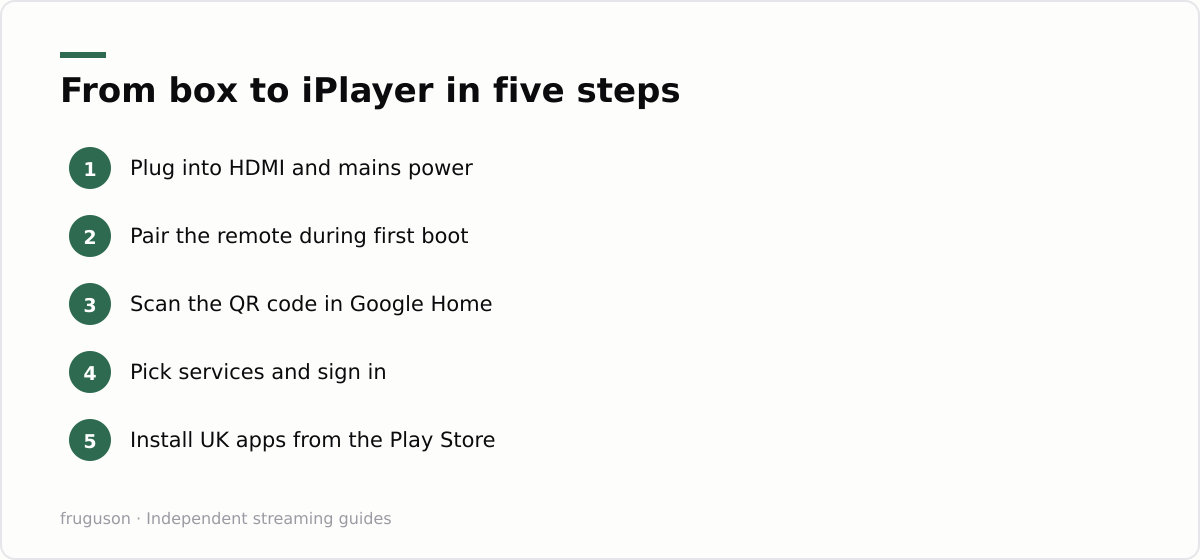
Five short steps cover the whole run. Everything below describes the Streamer, and a Chromecast differs only at the power step. Allow twenty minutes from opening the box. Keep your phone charged and your Wi-Fi password to hand, because the phone does most of the work.
Step 1: Connect power and HDMI
Plug the device into a spare HDMI port, then into the mains using the supplied power adapter. A TV’s USB socket rarely delivers enough current, and an underpowered device produces odd faults that look like software bugs. The remote should pair automatically during first boot. If it refuses, hold Back and Home together until the status light pulses, which forces pairing mode. Switch the TV to the correct HDMI input and the setup screen appears.
Step 2: Let the Google Home app do the typing
On-screen setup offers a QR code. Scan it with your phone and the Google Home app takes over, copying your Wi-Fi details and Google account across without a single d-pad keyboard session. This is worth doing even if you distrust phone setup, because entering an email address with a remote is misery. The app also names the device and assigns it to a room, which matters later for casting. Android phones and iPhones both handle it fine.
Step 3: Pick your services honestly
Setup asks which streaming services you use. Tick the ones you genuinely pay for and skip the rest, because these choices train the home screen. Recommendation rows then fill with programmes you can actually watch instead of adverts for subscriptions you do not have. You can edit the list later in account settings. Free UK players are worth ticking wherever they appear, since iPlayer and ITVX content then surfaces in the main rows.
Step 4: Install the rest of your apps
Now open the Play Store on the device itself, or do it the lazy way from a laptop. Sign in to play.google.com in any browser and press Install on the app you want; a dropdown lets you pick your new device, and the app lands on the TV within a minute or two. Remote installing is brilliant when you are setting up a device for a parent on the other side of town. Start with the Google TV apps UK viewers lean on most: BBC iPlayer, ITVX and Channel 4, then add My5 alongside whichever paid services you keep. Pluto TV and The Roku Channel cost nothing and pad out the live line-up nicely. Our best IPTV apps guide ranks the full field if you want opinions rather than a list.
Step 5: Tame the home screen and Live tab
Home screens on Google TV mix your apps with sponsored rows, and five minutes of pruning improves the place enormously. Hold the select button on any icon in the Your Apps row to reorder or remove it, and push the things you open daily to the front. Visit the Live tab next; it gathers linear channels from installed apps such as Pluto TV into a single guide, which is the closest thing the platform offers to flicking through Freeview. An apps-only mode also exists for anyone who prefers a plain launcher without recommendations. Look for it in the settings menu under your account.
Casting or Native Apps: Which Wins for Live TV?
Every Google TV device doubles as a Chromecast target. Open iPlayer or ITVX on your phone and tap the cast icon; you can cast live TV to the big screen within seconds. For a one-off that is genuinely useful. As a daily habit it is the wrong tool, for reasons that are practical rather than snobbish.
Native apps hold the stream on the TV itself, so nothing breaks when your phone rings or wanders out of Wi-Fi range. Cast sessions vary by app; many hand playback fully to the TV, yet the phone usually stays the only controller, and a flat battery can still strand you mid-match with no pause button. Live viewing amplifies every one of those small failure points, because there is no rewinding a moment you missed while reconnecting.
A physical remote is the other win. Pause sits under your thumb and subtitles are two clicks away, with no hunting for a handset that slipped between cushions. Picture quality tends to favour native playback too, since apps negotiate 4K and HDR directly with the device rather than inheriting whatever the cast session established. Running IPTV on Google TV through native apps also feeds the platform features that make it pleasant, including the Continue Watching row and voice search across every installed service.
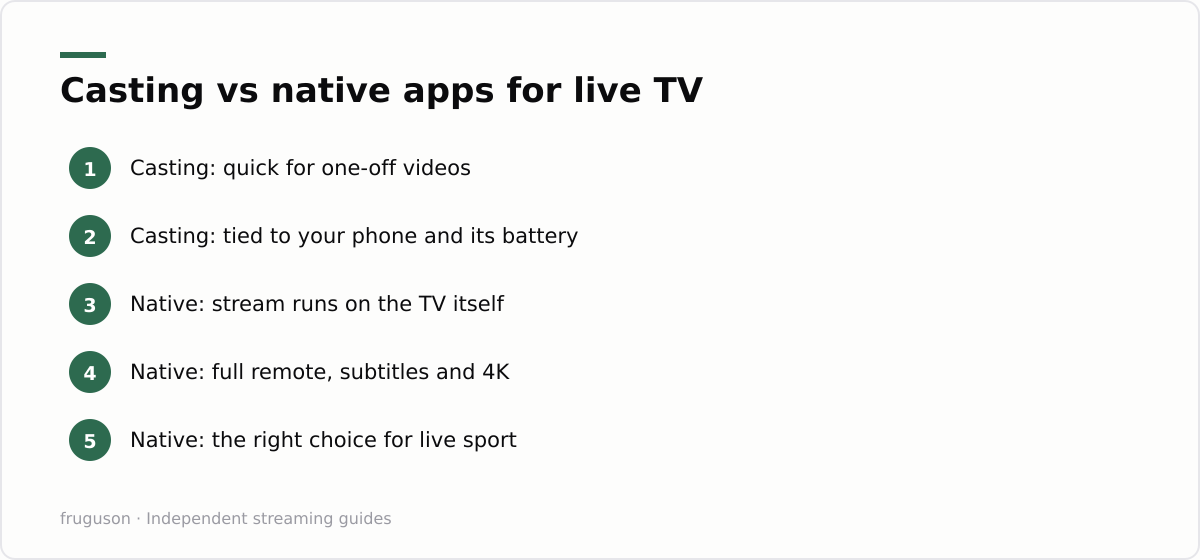
Keep casting for what it does best. A guest can throw a YouTube video at the telly without touching your profiles. Something found while idly browsing on the phone can jump to the big screen in one tap. For live sport or a rolling news channel, install the app and use the remote.
Profiles, Kids Mode and Ambient Extras
Profiles are the platform’s most ignored feature. Each adult profile keeps its own watchlist and its own recommendations, so one person’s true crime binge stops polluting everyone else’s home screen. Switching between them takes a couple of clicks from the top of the home screen. Setting them up costs five minutes per person and pays off daily.
Kids profiles go further than a separate watchlist. You choose exactly which apps a child can open, and the whole arrangement locks behind a parental PIN, with screen time limits and a bedtime cut-off available on top. A child cannot leave the profile without the code, which beats hoping they never stumble into the ITVX horror shelf. Streaming apps carry their own children’s modes as well, and the two layers combine nicely: the platform profile controls which apps exist, while the in-app profile controls what plays inside them.
Ambient mode is the quiet bonus. An idle device turns the TV into a photo frame, pulling from your Google Photos albums or a curated art gallery, and the Streamer can layer glanceable extras such as the weather on top. If the set lives in a kitchen or an office, a rotating album of family photos makes a far better resting state than a static logo slowly wearing the panel.
Picture and Sound: 4K HDR and Dolby Settings
Getting the best out of IPTV on Google TV takes a moment in the display settings. The Google TV Streamer outputs 4K HDR with Dolby Vision and HDR10+, and passes Dolby Atmos audio through to a compatible soundbar or receiver; the older Chromecast with Google TV 4K handles Dolby Vision as well. Open Settings, then Display and Sound, and set the resolution to the highest your projector or telly accepts rather than leaving it on an automatic guess. Turn on Match content frame rate too, so a 24fps film or a 50Hz live broadcast plays at its native cadence instead of being forced into one output mode, which is what causes the faint judder on slow camera pans.
Two things are worth knowing before you chase every badge. A service only streams Dolby Vision or Atmos on titles that were actually mastered for it, so a plain HD channel will not suddenly gain surround sound from a menu toggle. And HDR can look washed out on daytime telly, so if bright studio shows appear grey, drop back to the standard 4K SDR output and let apps switch into HDR only when the content genuinely carries it. A minute here does more for picture quality than any amount of hardware envy.
Verdict: Buy the Streamer, Lean on Native Apps
The Streamer is the sensible default for a main set, because wired networking and roomy storage cure the two faults that genuinely spoil evenings. £99 spread across years of service is cheap for that fix. A used Chromecast with Google TV at £25-35 remains a fair shout for a spare room, provided you accept occasional app pruning when storage groans. Whichever you choose, the operating habits matter more than the hardware. Keep native apps for anything live. Reserve casting for guests and stray phone finds. Give every household member a profile, and cable the main set in before the first kick-off. Your next decision is what earns a spot on that home screen, and our best IPTV apps guide makes the case for each contender.
Frequently asked questions
Does the Google TV Streamer support Dolby Vision and Dolby Atmos?
Yes. The Google TV Streamer outputs 4K HDR with Dolby Vision and passes Dolby Atmos to a compatible soundbar or receiver, and the older Chromecast with Google TV 4K handles Dolby Vision as well. You only get them on titles mastered for it, so check each app's own settings rather than expecting every stream to carry surround sound.
Is the Chromecast with Google TV still worth buying in 2026?
Second-hand or from remaining stock, yes, especially for a bedroom set. Its 8GB of storage fills quickly, so expect to uninstall apps now and then. For a main TV the Google TV Streamer's Ethernet port and 32GB of storage make it the stronger buy.
Why does my cast stream keep dropping during live TV?
Casting usually leaves your phone as the controller, so a sleeping handset, a dropped Wi-Fi connection or a low battery can interrupt playback. Native apps run entirely on the TV and avoid the problem. Install the app for anything you would hate to lose mid-programme.
Summarize this post with:
Follow How To Watch Streaming on Google News so you never miss a new guide.
Leave a comment