IPTV on a Fire TV Stick: The Complete UK Setup (2026)
A complete official-store guide to licensed streaming on Amazon's Fire TV Stick, covering UK broadcaster apps, profiles, settings and the sideloading trap.
Contents
- What IPTV on Fire TV Stick actually means
- Getting the sharpest picture and sound from your Firestick
- The Firestick IPTV setup, step by step
- The Fire TV apps UK viewers should install first
- Profiles, data saver and remote tricks worth learning
- Keeping a Firestick fast: storage and performance
- Where to go from here
Search for IPTV on Fire TV Stick and the results are grim: developer menus, unknown sources, sellers promising ten thousand channels for a tenner. Ignore all of it. Amazon’s streaming stick is one of the best ways to watch British telly, and every licensed service you could reasonably want already sits in the official Appstore. Nothing needs sideloading. No settings need hacking. This guide walks through the complete official setup, from first plug-in to profiles and data saver, and how to dial in the sharpest picture and sound once you are up and running.
What IPTV on Fire TV Stick actually means
Strictly speaking, IPTV is any television delivered over the internet rather than through an aerial or a dish. BBC iPlayer qualifies. So do ITVX, Netflix and Pluto TV. The term has been hijacked, though. In Facebook groups and YouTube comment sections, IPTV usually means a cheap reseller subscription that crams thousands of premium channels into a single login. That confusion is profitable for sellers and miserable for everyone else, so it pays to understand what apps like IPTV Smarters actually do before you spend a penny. A player app is just a shell. What matters is where the content behind it comes from.
One test cuts through the noise. A licensed service appears in the Amazon Appstore under its own name and never asks you to touch a security setting. An unlicensed one arrives as a username sold over WhatsApp or Telegram, and it needs a player that Amazon does not stock. If a tutorial’s first instruction involves a hidden menu, you already know which side of the line it sits on.
Getting the sharpest picture and sound from your Firestick
A minute in the settings menu is the difference between a Firestick that looks ordinary and one that looks superb. Open Settings, then Display and Sounds, then Display, and let the stick match your television’s best resolution. The HD sticks top out at 1080p, while the 4K models push 2160p with HDR; if your set supports HDR10+ or Dolby Vision, confirm those are switched on here rather than trusting the defaults. A telly that keeps handshaking badly and dropping to a softer image usually just needs the resolution set manually.
Sound deserves the same attention. Under the audio settings you can hand Dolby Atmos or surround formats straight through to a soundbar or AV receiver, or keep plain stereo if you are using the television’s own speakers. Getting this wrong is the usual reason a stream sounds flat through kit that should sing, so match the setting to the gear you actually own.
Networking decides whether 4K holds up. Ultra HD streams want a steady connection, so keep the stick on 5GHz Wi-Fi where you can and sit it within clear line of sight of the router. If a 4K stick lives a few rooms away and buffers during big events, a powered ethernet adapter plugs it into your wired network and cures the problem outright. A quick speed test rules out the broadband before you start blaming the hardware.
None of this involves a hidden menu or a security toggle: every licensed UK app installs straight from the Amazon Appstore and simply works. If you are still weighing up which subscription, if any, to add on top, our plain-English breakdown of whether IPTV is legitimate in the UK covers where the real costs and risks actually sit.
The Firestick IPTV setup, step by step
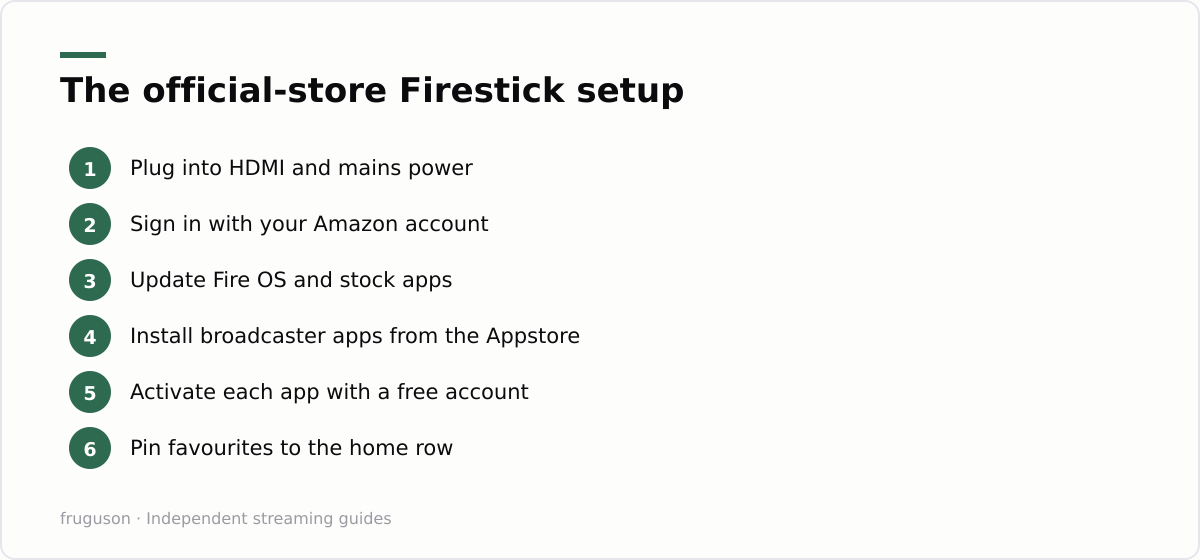
A fresh Firestick IPTV setup done properly takes about twenty minutes, and most of that is waiting for updates. You need the stick, its power adapter, your Wi-Fi password and a free Amazon account. Nothing else.
- Plug in and power up. Connect the stick to a spare HDMI port and use the supplied mains adapter rather than your telly’s USB socket. Some TV ports cannot deliver enough power, which causes random reboots that get blamed on the stick.
- Pair the remote and join Wi-Fi. The remote usually pairs itself; hold the Home button for ten seconds if it sulks. Pick your network and enter the password with the on-screen keyboard.
- Sign in to Amazon. An existing account works, or create a free one on your phone first, which is far quicker than typing an email address with a remote.
- Let everything update. Fire OS and the stock apps will want new versions. Give them the time. Running broadcaster apps on stale firmware is the source of half the playback complaints you read online.
- Decline the upsells. During onboarding Amazon pushes trials and subscriptions at you. Skip the lot; anything you actually want can be added later from the store.
- Install your apps. Open the search icon or the Appstore, type the broadcaster’s name and press Get. Each install takes seconds on a decent connection.
- Activate each broadcaster. UK catch-up apps are free but want an account. Most show a short code you enter on your phone at the broadcaster’s website, which beats wrestling with the on-screen keyboard.
- Arrange the home row. Highlight an app, press the menu button (three lines) and choose Move to put your daily services front and centre.
Broadcaster accounts cost nothing across the board. BBC iPlayer wants a BBC account and ITVX wants an ITV one; Channel 4 and 5 follow the same free pattern. Every account takes about a minute on a phone, and once each app is signed in it stays signed in.
The Fire TV apps UK viewers should install first
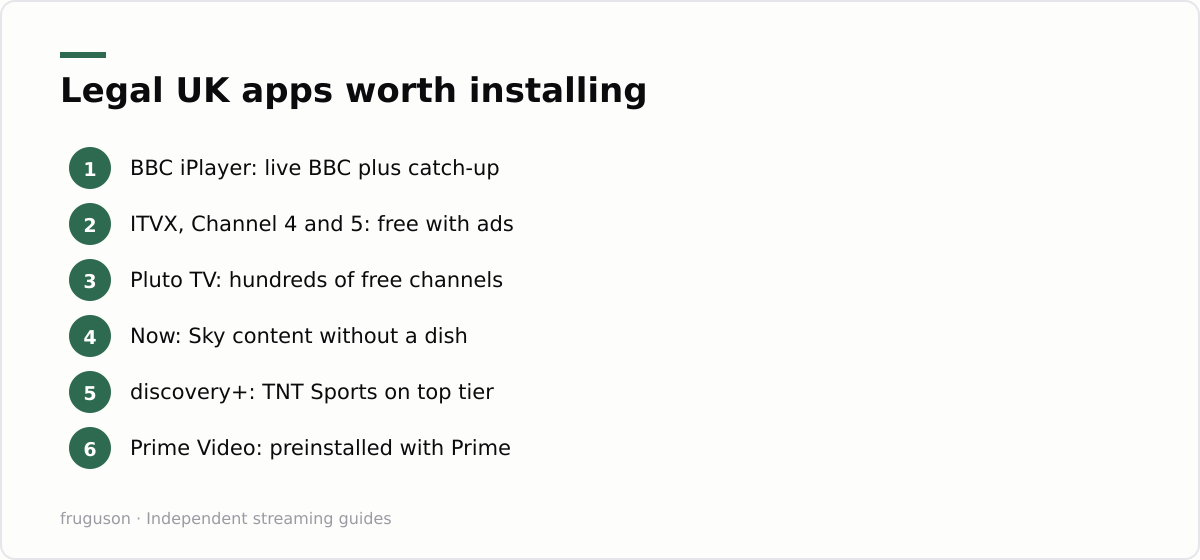
Every service below is licensed, sits in the Amazon Appstore today and is safe to hand your details. Prices move constantly, so treat the paid figures as approximate; all were checked July 2026.
| App | Cost | What you get |
|---|---|---|
| BBC iPlayer | Free (BBC account needed) | Live BBC channels plus the full catch-up archive |
| ITVX | Free with ads | Live ITV channels and a deep drama library |
| Channel 4 | Free with ads | Live channels plus decades of box sets |
| 5 | Free with ads | Channel 5 live and on demand |
| Pluto TV | Free with ads | Hundreds of themed streaming channels |
| Now | From roughly £10 a month | Sky entertainment and sport passes, no dish or contract |
| discovery+ | Free tier, paid plans above | Reality catalogue, with TNT Sports on the top tier |
| Prime Video | Included with Prime | Amazon originals and some live Premier League football |
Netflix, Disney+ and the other big subscription names are all present too, and they behave exactly as they do on any smart telly. Prime Video comes preinstalled, which surprises nobody given whose stick it is.
Firestick live TV has one genuinely underrated trick: the Live tab on the home screen pulls channels from your installed apps into a single programme guide. Scrolling through Pluto TV’s free channels there feels remarkably like flicking through Freeview, except nothing needed an aerial. All of that together is IPTV on Fire TV Stick done properly, and most of it costs nothing at all.
Profiles, data saver and remote tricks worth learning
Fire OS supports up to six viewing profiles, each with its own watchlist and recommendations, so your gritty crime dramas stop polluting the kids’ suggestions. Adding one takes seconds from the profile icon on the home screen. For children, an Amazon Kids profile goes further and locks the stick to approved apps and age ratings. Whatever you do, put a PIN on purchases in the account settings; a bored toddler with a remote is a genuine financial hazard. Menu names shift slightly between Fire OS versions, so hunt around Settings if an option has moved.
Data saver matters more than people expect. Buried under Settings and Preferences you will find data monitoring and video quality controls, and dropping from Best to Good quality is nearly invisible on a small telly while cutting data use dramatically. Households on 4G or 5G routers, or on capped rural connections, should set this on day one. Ultra HD streaming can chew through several gigabytes an hour, which adds up fast when the whole family binges.
Remote shortcuts save daily irritation. Hold the Home button for a quick panel covering sleep mode and settings. Press the Alexa button and say the app’s name; “open ITVX” beats scrolling every time, and voice search also works across apps for titles and actors. The remote controls your telly’s volume and power through HDMI-CEC, so the old TV remote can finally live in the drawer. If the stick ever freezes, hold Select and Play together for around five seconds and it restarts without you touching the plug.
Keeping a Firestick fast: storage and performance
The one weakness of Amazon’s sticks is storage. The standard models carry only a few gigabytes of usable space, and Fire OS itself claims a large slice of that before you install a thing. Every app you add, plus the cache it builds up while streaming, competes for what little remains, which is why a stick that felt quick out of the box starts stuttering months later.
Housekeeping fixes most of it. Open Settings, then Applications, then Manage Installed Applications, and you can see how much space each app is using. Clearing the cache on your heaviest apps reclaims space instantly without deleting your logins, and uninstalling anything you no longer watch frees more. A weekly restart, either from the Settings menu or by holding Select and Play for around five seconds, clears memory and cures most freezes.
If storage is genuinely tight on an older stick, lean on apps with a lighter footprint and resist installing games, which are the biggest culprits. The newer 4K models ship with more storage and a faster processor, so an upgrade is worth considering if constant housekeeping starts to wear thin.
Where to go from here
Priced like a family takeaway, the Firestick is a ridiculous bargain for licensed telly; models typically sit around £30-60 depending on spec and sales (checked July 2026), and Amazon discounts them constantly. Your next move is deciding which paid service, if any, deserves a slot alongside the free broadcasters. Our comparison of the best IPTV services in the UK for 2026 ranks the realistic options by price and catalogue. One last thought before you buy anything: if your television is reasonably new, run through our smart TV setup walkthrough first. The apps you want may already be built in, and the stick can go to the bedroom telly instead.
Frequently asked questions
How much storage does a Fire TV Stick have, and why does it fill up?
The standard sticks ship with only a few gigabytes of usable storage, most of it taken by Fire OS. Streaming apps and their caches eat the rest, which is why a stick slows down over time. Clear individual app caches under Settings, Applications, and uninstall anything you no longer watch.
Can I use a Fire TV Stick remote to control my TV?
Yes. The Alexa Voice Remote controls your television's power and volume over HDMI-CEC, so one remote handles both. Press the Alexa button and say "open ITVX" to launch an app, and hold Home for a quick menu. If the stick freezes, hold Select and Play together for about five seconds to restart it.
Does a Fire TV Stick support 4K and HDR?
The standard HD sticks stream at up to 1080p, while the 4K and 4K Max models output 2160p with HDR10, HDR10+ and Dolby Vision on a compatible television. Set this under Display and Sounds rather than trusting the defaults, and use 5GHz Wi-Fi or a powered ethernet adapter so a 4K stream has the bandwidth it needs.
Summarize this post with:
Follow How To Watch Streaming on Google News so you never miss a new guide.
Leave a comment