How to Set Up IPTV on a Smart TV in the UK (Step-by-Step)
A practical walkthrough for getting official IPTV apps running on Samsung, LG and Google TVs in the UK, with the fixes for the problems we actually hit.
Contents
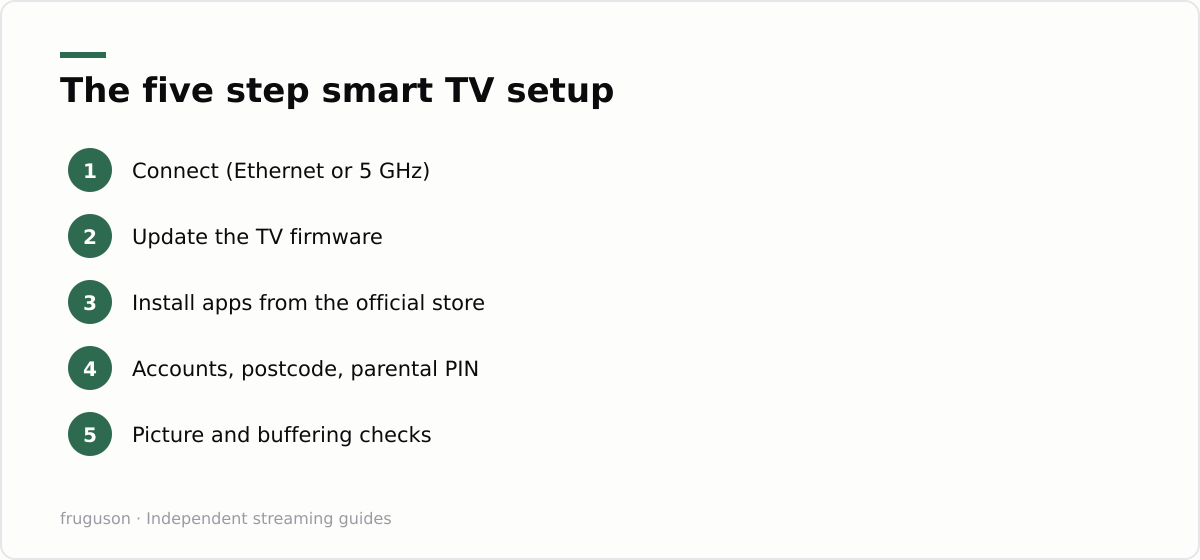
- Step 1: Get your TV online (wired if you can)
- Step 2: Update the TV’s software
- Step 3: Install IPTV apps from the official store
- Step 4: Sort the account plumbing
- Step 5: Fix the picture and the buffering
- Quick troubleshooting: the faults we actually see
- When to give up on the built-in apps
- Setting up a second room
- The complete checklist
If you want to set up IPTV on a smart TV, the good news is that in the UK it’s genuinely a ten-minute job, once you know which apps to install and which settings menu your TV hides them in. We’ve done this setup on a 2022 Samsung, a 2021 LG and a Chromecast with Google TV. This IPTV setup guide is the exact process we follow, plus the fixes for the three problems we actually hit.
First, a quick note on scope. This guide sticks to the official UK apps that install straight from your TV’s own app store, so every step here works without sideloading, APK files or activation middlemen. If you’re still weighing up which memberships are worth paying for, our guide to choosing a UK provider compares the main options.
Step 1: Get your TV online (wired if you can)
Head to Settings → Network on any platform. If your router is in reach, use Ethernet. In our tests, a wired connection eliminated every buffering complaint we’d had on Wi-Fi. If cabling isn’t possible, connect to the 5 GHz network name where your router broadcasts one. Then check the signal indicator in the TV’s network menu before moving on.
One detail that trips people up: some TVs remember an old network and silently reconnect to it. If you’ve replaced your router recently, delete the stale network profile first. The TV will otherwise keep hunting for a signal that no longer exists, and every app on it will feel broken.
Step 2: Update the TV’s software
Next, update the firmware, old software is the top cause of “app not supported” errors on 2018–2020 sets.
- Samsung (Tizen): Settings → Support → Software Update.
- LG (webOS): Settings → All Settings → Support → Software Update.
- Google/Android TV: Settings → System → About → System update.
This usually takes a few minutes. Meanwhile, you can create the accounts you’ll need on your phone (more on that in Step 4). While you’re in the settings, turn automatic updates on. Both of our test TVs shipped with it off, and a firmware release from months earlier was the root cause of one “app keeps closing” complaint we chased for an evening.
Step 3: Install IPTV apps from the official store
Now the main event. Open your TV’s app store (Samsung Apps, LG Content Store, Google Play) to install IPTV apps that fit your setup, our UK service comparison explains which are worth paying for:
- Freely, built into many 2024+ TVs (not installable on older ones; use the individual apps below instead).
- iPlayer, ITVX, Channel 4, 5; the free UK catch-up core.
- Now, Sky content on a rolling membership.
- discovery+, home of TNT Sports.
- Prime Video / Netflix, usually pre-installed.
These smart TV streaming apps are all official, so there’s no sideloading, no APK files and no “activation” middlemen. Afterwards, sign in to each on the TV, or better, use the “sign in with code on your phone” option, which is much faster than typing passwords with a remote.
The store search on each platform has its quirks. Samsung’s search matches exact names only, so type “ITVX” rather than “ITV”. LG’s Content Store buries UK catch-up apps a few rows down under “Most popular”, search directly instead of browsing. Google TV handles search best, and you can even install from the Play Store website on your laptop and push apps to the TV remotely.
Step 4: Sort the account plumbing
Three small things save future frustration:
- Create accounts on your phone first, then just sign in on the TV.
- Check simultaneous-stream limits if the household shares accounts.
- Note which email you used for each service, because a forgotten sign-in is the most common headache months later when an app logs itself out.
In addition, it’s worth turning off autoplay previews in each app’s settings while you’re in there. Your remote-wielding household members will thank you.
The UK catch-up apps also want a postcode during registration, because regional programming (local news, ITV regions) is tied to where you live. Use your real one. Entering a random postcode gets you the wrong regional feed, and correcting it later means digging through account settings on a website, not on the TV.
If children use the TV, set the parental PIN now rather than after an incident. Every platform hides it somewhere different: Samsung under Broadcasting → Programme Rating Lock, LG under Safety, Google TV per-profile. Five minutes here beats a surprise later.
Step 5: Fix the picture and the buffering
Finally, two settings runs, one on the TV, one behind it:
- In each app, set playback quality to auto first. Only force 4K if your connection is comfortably above the 25 Mbps that Ofcom’s guidance suggests per 4K stream.
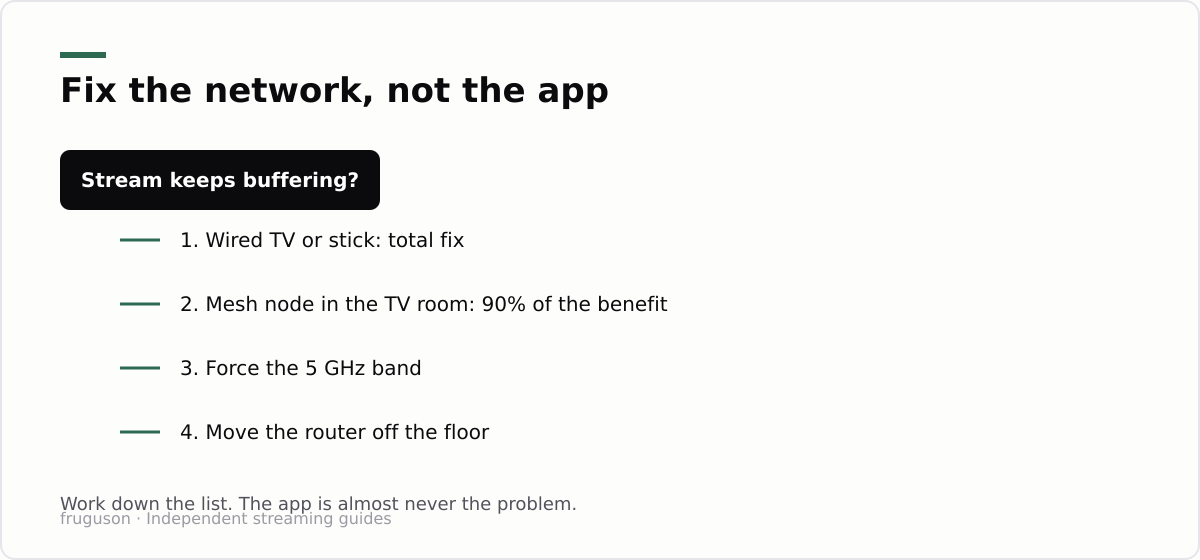
- If streams stutter at peak time: move to Ethernet, add a mesh node near the TV, or schedule big downloads off-peak. Our full equipment guide covers the routers and sticks that fixed this for us.
Two picture settings deserve a minute each while you’re here. First, hunt down motion smoothing (Samsung calls it Auto Motion Plus, LG calls it TruMotion) and turn it off or down for films; the soap-opera effect ruins more evenings than buffering does. Second, check the HDMI input is labelled correctly if you use a stick: on Samsung and LG, setting the input type to “PC” or “Game console” changes picture processing, and a mislabelled input is why some sticks look washed out.
Sound deserves one too. If you run a soundbar over HDMI ARC and a particular app has lip-sync drift, switch the TV’s digital audio output from pass-through to PCM and the drift usually disappears. We hit this on ITVX on the LG; one toggle fixed it permanently.
Quick troubleshooting: the faults we actually see
A short field guide from our own support duty for friends and family. Work down the list in order.
- App opens then closes immediately: firmware is behind, or the app cache is corrupted. Update the TV (Step 2), then uninstall and reinstall the app. Fixed every crash-loop we’ve met.
- “This app isn’t available on your TV”: the set is too old for that service’s current app. No setting fixes this; it’s the streaming-stick moment (below).
- Sign-in code page rejects the code: codes expire in a couple of minutes. Generate a fresh one and type it promptly, and make sure phone and TV are on the same account region.
- Picture stutters only in the evening: classic peak-time Wi-Fi congestion, not the service. Ethernet or a mesh node solves it; a faster broadband package usually doesn’t.
- Sound out of sync on one app only: toggle the TV’s audio output from “pass-through” to PCM for that source. Soundbar owners hit this most.
- Live channels fine, on-demand fails: usually a DNS hiccup on the TV. Restart the router first; if it persists, set the TV’s DNS to your ISP’s defaults rather than anything custom.
When to give up on the built-in apps
If your TV predates roughly 2019, the built-in apps will be slow, missing from the store, or abandoned by the service. Don’t fight it. Instead, a Fire TV Stick or Chromecast with Google TV costs £30–60, plugs into HDMI, and instantly gives an old panel the full current app line-up, every service above, kept up to date. As a result, that’s the route we now recommend for any older set: you still set up IPTV on a smart TV the same way, but the stick’s app store does the heavy lifting.
There’s a second, quieter reason to prefer a stick on an ageing TV. App developers optimise for current hardware, so each yearly app update runs a little worse on an old processor. The stick resets that clock. When it eventually slows down too, replacing a £40 stick stings a lot less than replacing a panel that still shows a perfect picture.
Setting up a second room
Once the living room works, the bedroom TV takes five minutes, not ten. Your accounts already exist, so it’s sign-in codes all the way down. Two things differ. Wi-Fi that was fine one wall from the router often isn’t two floors up, so check the signal indicator before blaming an app. And stream limits start to matter: watch Now on two screens while someone opens a third and the oldest stream stops without much explanation. If you set up IPTV on a smart TV in a second room and it misbehaves while the first one is flawless, the network is almost always the difference between them.
The complete checklist
- TV online (Ethernet or 5 GHz) and updated.
- Apps installed from the official store, signed in.
- Postcode, profiles and parental PIN sorted.
- Simultaneous-stream limits noted for shared accounts.
- Quality on auto; buffering fixed at the network, not the app.
- Motion smoothing off, audio on PCM if a soundbar misbehaves.
- Older TV? Stick instead.
Done; that’s a complete, licensed UK IPTV setup on one remote. If you’re still deciding which memberships deserve a slot on your home screen, start with our comparison of the UK’s licensed IPTV services and add from there.
Frequently asked questions
Do I need to sideload apps to watch IPTV on a smart TV in the UK?
No. Every licensed UK service, Sky's Now, Freely, ITVX, iPlayer, Channel 4, discovery+, is in the official Samsung, LG and Google TV app stores. If a service tells you to sideload an APK or enter an unknown 'portal URL', that's the hallmark of an unlicensed provider.
Why does my IPTV keep buffering?
In our testing it was almost always Wi-Fi, not the app: the TV was too far from the router or on the congested 2.4 GHz band. Wired Ethernet, a mesh node near the TV, or forcing the 5 GHz band fixed it in every case. Ofcom suggests ~10 Mbps per HD stream and 25+ Mbps for 4K.
Why won't an app install or open on my smart TV?
Nearly always because the TV's firmware is out of date or the set is too old for that app's current version. Update the software first (Settings → Support → Software Update), then uninstall and reinstall the app. If the store says the app isn't available for your TV at all, the panel has aged out and a £30-60 streaming stick is the quickest fix.
Summarize this post with:
Follow How To Watch Streaming on Google News so you never miss a new guide.
Leave a comment