IPTV on Android Phones and Tablets: The UK Guide
A hands-on UK guide to IPTV on Android phones and tablets, covering Play Store setup, Chromecast casting, picture quality and data savers.
Contents
Your phone is probably the most capable streaming device you own, and it is already sitting in your pocket. Setting up IPTV on Android takes about twenty minutes, costs nothing beyond the subscriptions you already pay for, and every app you need sits in the Play Store. This guide covers the whole job, from installing the UK services and casting with Chromecast built in through to picture quality, battery and data saver tricks that keep viewing smooth on a handset.
What IPTV on Android Actually Means
IPTV simply means television delivered over the internet instead of through an aerial or a satellite dish. On a phone or tablet that covers everything from BBC iPlayer to Netflix — any app that streams live or on-demand TV over your connection is IPTV. This guide sets those apps up properly, then covers picture quality, battery, casting and the settings worth changing so it all runs smoothly on a handset.
Licensed options for UK Android users are genuinely strong right now. All four main broadcasters offer free apps with live channels plus full catch-up libraries. Pluto TV adds hundreds of free ad-supported channels and is arguably the best free live TV app Android currently offers. The Roku Channel does something similar with a smaller UK line-up. Paid services such as Netflix, Prime Video and Now fill in the films and the sport. Nothing in that list requires anything beyond a Google account.
Step by Step: The Play Store Setup
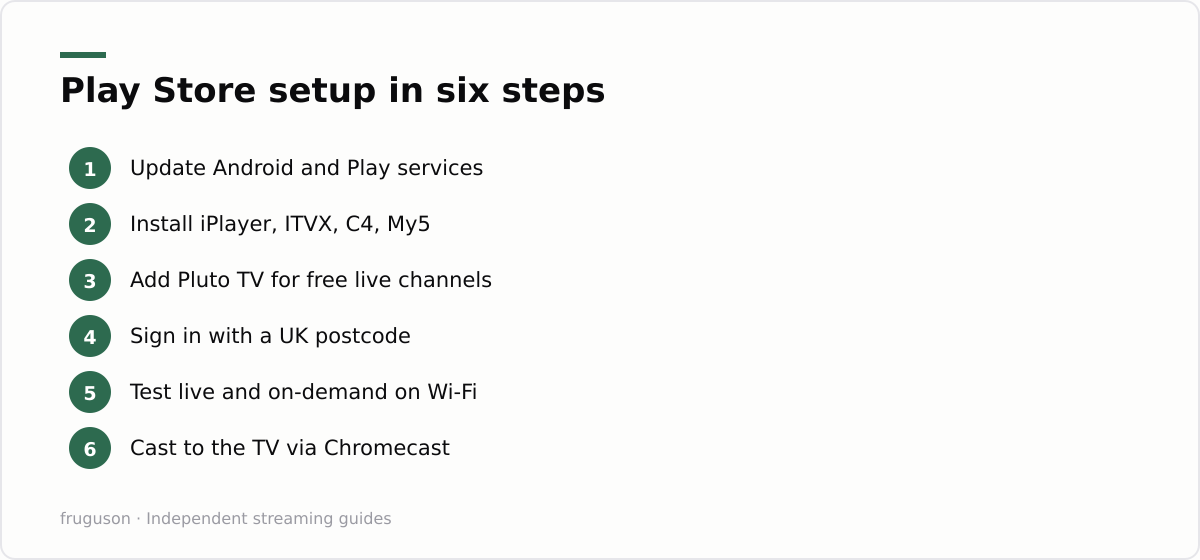
Here is the order I would do it in on a fresh phone or tablet.
- Open Settings, check for a system update, then let the Play Store update Google Play services. Stale versions cause playback errors that look like app faults but are not.
- Install the free broadcaster apps: BBC iPlayer, ITVX, Channel 4, My5.
- Add a free live channel app. Pluto TV is the obvious first pick; The Roku Channel is worth having too.
- Install any paid apps you already subscribe to, such as Netflix or Now. Do not buy anything new yet.
- Create or sign in to an account in each broadcaster app. They are free, but registration with a UK postcode is required.
- Play one live programme and one on-demand programme in each app while on Wi-Fi, so any sign-in or region problem shows up now rather than on a train.
A few notes on the fiddly bits. Broadcaster apps ask for a postcode because regional programming and advertising rules require it; that is normal rather than suspicious. Most services offer a kids profile or a PIN lock, which is worth switching on for a family tablet. Android streaming apps also update themselves through the Play Store automatically, one of the quiet advantages of doing this properly: security patches arrive without you ever thinking about them. If you want a deeper comparison of what each service actually carries, our guide to the best IPTV apps in the UK ranks the lot.
Tablets deserve a special mention. A cheap Android tablet with a kickstand case makes a genuinely good kitchen or bedroom telly, and most of these apps support picture in picture, so a live stream can shrink into a corner while you answer an email. Nothing about the setup differs; the same Play Store, the same six steps.
Casting to Your TV with Chromecast Built In
Casting is the feature that turns a phone setup into a living room setup. Most TVs sold in the UK in recent years with Google TV or Android TV inside include Chromecast built-in, and Google’s standalone streamer or an older Chromecast dongle adds it to anything else. The routine is identical everywhere. Connect the phone and the TV to the same Wi-Fi network. Open iPlayer or Netflix and start something playing. Tap the small rectangle icon with the Wi-Fi symbol in the corner, then pick your TV from the list that appears.
Now for the clever part. The stream plays on the television directly from the internet, not from your handset, so you can lock the screen, take a call or leave the room without interrupting playback. Your phone becomes the remote instead: pause, scrub, switch subtitles, queue the next episode. This is also where IPTV on Android quietly beats a fixed set-top box, since the same account follows you from pocket to living room to a friend’s house.
Cast icon refusing to appear? The phone and the TV are almost always on different networks, often because one of them wandered onto a guest network or the other side of a 2.4GHz/5GHz split. Screen mirroring is a different feature and a worse one; mirroring copies your display pixel by pixel, which drains the battery and softens the picture. Use the proper cast button whenever an app offers it, and keep mirroring as a last resort for apps that do not.
Downloads and Data Saver Modes
Plenty of people watch TV on phone screens during a commute, and mobile data is where the hidden costs live. Two tools keep the bill under control: offline downloads and each app’s quality settings.
Downloads first. BBC iPlayer lets you save most programmes over Wi-Fi and watch them offline for up to thirty days, which is the single best trick for train journeys with patchy signal. Netflix and Prime Video offer the same on nearly everything they carry. ITVX reserves downloads for its paid Premium tier, and the other broadcaster apps vary, so check before you rely on one for a long trip. Live channels can never be downloaded, by definition; if the journey matters, save something in advance.
Quality settings second. Almost every app hides a data saver or stream quality option in its settings menu, and dropping from full HD to standard definition on a six inch screen is barely visible while cutting data use dramatically. Live television streamed at high quality can get through roughly a gigabyte or more per hour, so an evening of viewing can empty a small allowance fast. Our breakdown of how much data IPTV uses in the UK has fuller figures for each service. For home viewing over a sluggish connection, Ofcom’s broadband speeds guidance at https://www.ofcom.org.uk/phones-and-broadband/broadband-speeds explains what your line should deliver and what to do when it does not.
| App | Cost | Live channels | Offline downloads | Casts to TV |
|---|---|---|---|---|
| BBC iPlayer | Free, licence needed | Yes | Yes | Yes |
| ITVX | Free with ads | Yes | Premium tier only | Yes |
| Pluto TV | Free with ads | Yes | No | Yes |
| Netflix | Paid | No | Yes | Yes |
| Now | Paid | Yes | Yes | Yes |
Installing and managing streaming apps on Android
Getting apps onto an Android phone or tablet is quick, and a few habits keep the experience smooth. Every mainstream UK streaming service — BBC iPlayer, ITVX, Channel 4, My5, Netflix, Prime Video, Disney+, Now — has a Play Store listing, so installation is a single tap and updates arrive automatically in the background. Generic player apps such as IPTV Smarters and TiviMate live there too; they are empty shells that play whatever channel list you load into them, and we cover how they work in our piece on what IPTV Smarters actually is.
Two settings save most people grief. Turn on automatic updates over Wi-Fi in the Play Store so your apps stay current without eating mobile data, and clear an individual app’s cache (Settings → Apps → the app → Storage) if it starts crashing or refusing to load — it fixes far more problems than a full reinstall. If storage runs tight on a smaller device, streaming apps are safe to uninstall and reinstall later; your account and watch history live in the cloud, not on the handset.
For the best experience, keep the apps you use most on your home screen, sign in once so your place syncs across devices, and let the phone update Android itself when prompted, since the video codecs and DRM modules that decide streaming quality ride along with those system updates.
Picture Quality, DRM and Audio on Android
One quirk catches Android viewers out: a service that plays in crisp HD on one phone is stuck at fuzzy standard definition on another, and the cause is usually DRM rather than the app. Streaming services use Google’s Widevine copy protection, and only devices certified at Widevine level L1 are allowed to play HD and above. Most mainstream phones and tablets ship with L1, but older budget models, some imports, and phones running a custom ROM often sit at L3, which caps everything at SD no matter how sharp the screen is. A free DRM Info app from the Play Store shows your level in seconds, and it is worth checking before blaming iPlayer or Netflix for a soft picture.
Sound is the other thing worth a moment. A wired USB-C headset or the phone’s own speaker keeps audio in perfect step with the picture, whereas Bluetooth adds a small delay that can drift lips and words apart during dialogue. Most modern phones and earbuds handle this well with low-latency codecs, but if you notice a lag, switching to wired listening fixes it instantly. On a tablet propped up as a second telly, a cheap Bluetooth speaker lifts the sound enormously over the built-in drivers, just keep an eye on that same sync when watching people talk rather than music.
Where to Start Tonight
Skip further reading and run one small experiment this evening. Install Pluto TV plus iPlayer, sign in, then cast a single programme to the biggest screen in the house. If it plays smoothly, add whichever services you already pay for and flip every quality setting to the saver option before your next commute. Total spend so far: zero. The only early purchase worth considering is a Google TV Streamer for a television that lacks the cast icon, checked July 2026 at somewhere under £100. Everything else stays free until you choose a paid subscription on your own terms. And if a stranger on a forum ever offers you every channel on earth for a tenner, you now know exactly which shop their app is missing from, and why.
Frequently asked questions
Why does streaming only play in SD on my Android phone?
Most likely the phone's Widevine DRM is certified at level L3 rather than L1, which caps services such as Netflix and Disney+ at standard definition. Mainstream phones ship with L1 and play HD fine; the limit tends to hit older, very cheap, or custom-ROM devices. A free DRM Info app from the Play Store shows your level.
Does casting from an Android phone drain its battery?
Barely, because casting hands the stream to the TV, which then pulls the video from the internet itself rather than through your phone. The handset only sends the play command and acts as the remote, so you can lock it or take a call without stopping playback. Screen mirroring is the opposite and does drain the battery, so use the cast button whenever an app offers it.
Can I cast from my phone without buying a Chromecast dongle?
Often, yes. Most recent TVs running Google TV or Android TV include Chromecast built-in, so the cast icon works as soon as the phone and the TV share the same Wi-Fi network. For older sets, a Google TV Streamer or similar device adds the feature for a modest one-off cost.
Summarize this post with:
Follow How To Watch Streaming on Google News so you never miss a new guide.
Leave a comment