Sky Stream Puck Setup: From Box to Watching in 15 Minutes
A hands-on walkthrough of the Sky Stream puck: wifi checks, sign in, Entertainment OS, extra rooms, common errors and how it compares with Sky Q.

Contents
- What’s in the box
- Check your broadband before anything else
- Sky Stream setup, step by step
- Step 1: Plug in and position
- Step 2: Get it on the network
- Step 3: Sign in
- Step 4: Channels and picture checks
- Getting around Entertainment OS
- Adding pucks for extra rooms
- Common Sky puck problems and how to fix them
- What the puck cannot do versus Sky Q
- Rolling versus 18 month terms
- The verdict, and where to go next
Sky’s puck promises the full package through your broadband, with no dish on the wall and no engineer booking. It mostly delivers. A typical Sky Stream setup runs about 15 minutes from cutting the box tape to watching live channels, provided your connection and home wifi can carry the load. This guide walks the whole route: unboxing, the broadband checks worth doing first, signing in, finding your way around Entertainment OS, adding pucks in other rooms, and the short list of errors behind most support calls. It also spells out what the puck cannot do, because several Sky Q habits simply do not transfer.
What’s in the box
Packaging is lean. You get the puck, a voice remote with batteries, a power supply and an HDMI cable. That is everything. The unit is small enough to hide behind most tellies and it runs cool and silent, since there is no hard drive spinning inside. Around the back sits an ethernet port, which matters more than it looks. Wifi is the default path for most homes, yet a wired connection removes a whole category of glitches, so use a cable if your router lives near the TV.
Keep the supplied HDMI lead. It is rated for 4K HDR, and swapping it for a random old cable from a drawer is a classic cause of handshake grief later on. The remote pairs over Bluetooth during setup, so it will happily work from a sofa arm without pointing at anything.
Check your broadband before anything else
Full time streaming is a heavier load than the odd iPlayer catch-up. Sky’s guidance on the official product page at sky.com/tv/stream has generally asked for a minimum of roughly 10 Mbps per puck, with clear headroom above that recommended for UHD viewing. Read those figures as per puck rather than per household. Two pucks pulling UHD in separate rooms want a line that holds 50 Mbps or better without flinching.
Speed at the router is not the same thing as speed at the telly. Ofcom’s ongoing research into real world broadband performance, published at ofcom.org.uk, tracks how far actual speeds drift from advertised ones, and wifi inside the home usually drops things further still. Stand where the puck will live and run a speed test on your phone. If the number collapses in that exact spot, sort the wifi before you begin the Sky Stream setup proper.
Sky Stream setup, step by step
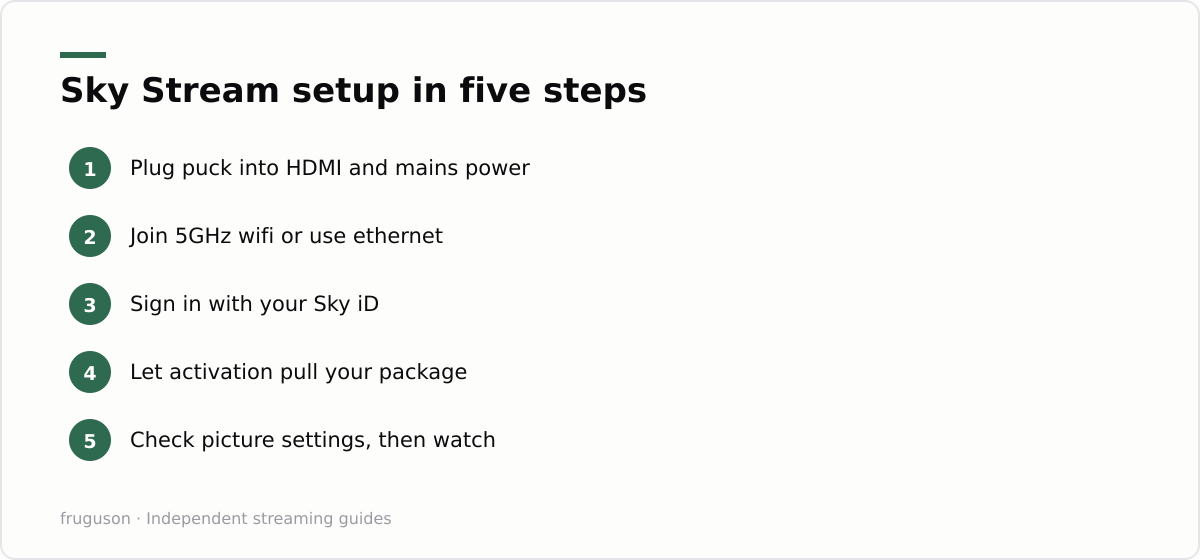
Before touching hardware, dig out your Sky iD email and password, because the puck will ask for them early. If you ordered online, the account already exists. New customers sometimes create the iD during checkout and promptly forget it, so a password reset now saves a stall later. Have your wifi password ready as well. With those two things to hand, the rest is genuinely quick.
Step 1: Plug in and position
Connect the HDMI cable to a spare port on your TV and give the puck mains power; there is no battery option. Placement matters a little. The unit talks to the remote over Bluetooth, so it can sit hidden, but burying it inside a closed metal cabinet will strangle the wifi signal. Behind the telly or on an open shelf is fine. Switch your TV to the matching HDMI input and the Sky splash screen should appear within seconds. If the screen stays black, jump ahead to the troubleshooting section, because HDMI grumbles are the most common first hurdle.
Step 2: Get it on the network
Choose wifi or ethernet when prompted. Ethernet wins on stability every time, so plug in if you can. On wifi, the puck lists nearby networks; pick yours and type the password with the remote. Modern routers broadcast 2.4GHz and 5GHz bands, often under a single name, and the puck strongly prefers the faster 5GHz band at short range. A quick connection test runs automatically after joining. Take its verdict seriously, since a marginal result here becomes buffering during the ten o’clock news later.
Step 3: Sign in
Enter your Sky iD when asked. Some installs display a short code and send you to a Sky webpage on your phone instead, which spares you typing a full password with a remote. The puck then activates itself against your subscription, pulls down your package details and applies any add ons such as UHD or Sky Sports. This stage needs a minute or two of patience. A stuck activation is nearly always an account issue rather than a hardware one, so check your order confirmation email if it loops.
Step 4: Channels and picture checks
No aerial tuning scan happens here, which surprises people arriving from Freeview. Channels come over the internet, arranged in a familiar guide, and the big streaming apps sign in from the settings menu whenever you get round to it. Netflix, iPlayer, ITVX and the rest live inside the same interface rather than on a separate smart TV screen. Take one minute to confirm the picture settings match your telly, especially on a 4K set; the puck can output UHD and HDR where your package and panel allow. After that, you are watching. Most people land here around the 15 minute mark.
Getting around Entertainment OS
Entertainment OS is the software layer, the same family of interface Sky uses on Sky Glass. The homepage leads with rails of recommendations that blend live channels, catch-up and apps into one view. Search is genuinely cross service, so asking the voice remote for a title surfaces results from Netflix and iPlayer alongside Sky’s own channels. The key habit to learn is Playlist. Press the plus button on anything and it lands in your Playlist, which acts as a bookmark shelf rather than a recording library. Shows in it stream on demand from whichever service holds them. Give yourself an evening of poking around; the layout rewards it, and the settings menu hides useful accessibility and audio options that the setup wizard never mentions.
Adding pucks for extra rooms
Whole Home is the multi room option. Each additional room gets its own puck, and every one of them repeats the same Sky Stream setup routine: HDMI, power, network, sign in. They all hang off a single account, so your Playlist and viewing history follow you between rooms. Pricing has moved around, but the Whole Home add on has sat somewhere in the £10-15 a month range, checked July 2026, sometimes with a one off charge per extra puck on top. Confirm the current figure before ordering rather than trusting any article, this one included. Remember the bandwidth arithmetic from earlier as well: three pucks streaming at once means three simultaneous streams, and a strained connection will show it. Wiring the busiest rooms with ethernet is the cheapest fix available, and our IPTV equipment guide covers the cables and mesh kits worth buying.
Common Sky puck problems and how to fix them
Two faults dominate real world Sky puck problems, and both are fixable in minutes without a call to support.
Wifi band trouble comes first. Mesh systems and combined band routers sometimes shove the puck onto the congested 2.4GHz band, or bounce it between nodes, and the symptom is playback that stutters at busy times even though a laptop nearby seems fine. Splitting your wifi into separately named 2.4GHz and 5GHz networks, then joining the puck to the 5GHz one, cures most cases. Moving the router closer, or running that ethernet cable, cures the rest.
HDMI handshake failures are the other classic. A black screen or a “no signal” message on a brand new install usually means the TV and puck have failed to agree copy protection terms, a process called HDCP. Power everything off at the wall, start the TV first, then the puck, and let the two renegotiate. Trying a different HDMI port often helps, as does using the supplied cable rather than an elderly one. On 4K sets, look for a setting named something like enhanced HDMI format on that specific port and switch it on, or UHD output may refuse to appear. Old AV receivers sitting between puck and telly cause similar grief; plug the puck straight into the TV to test.
What the puck cannot do versus Sky Q
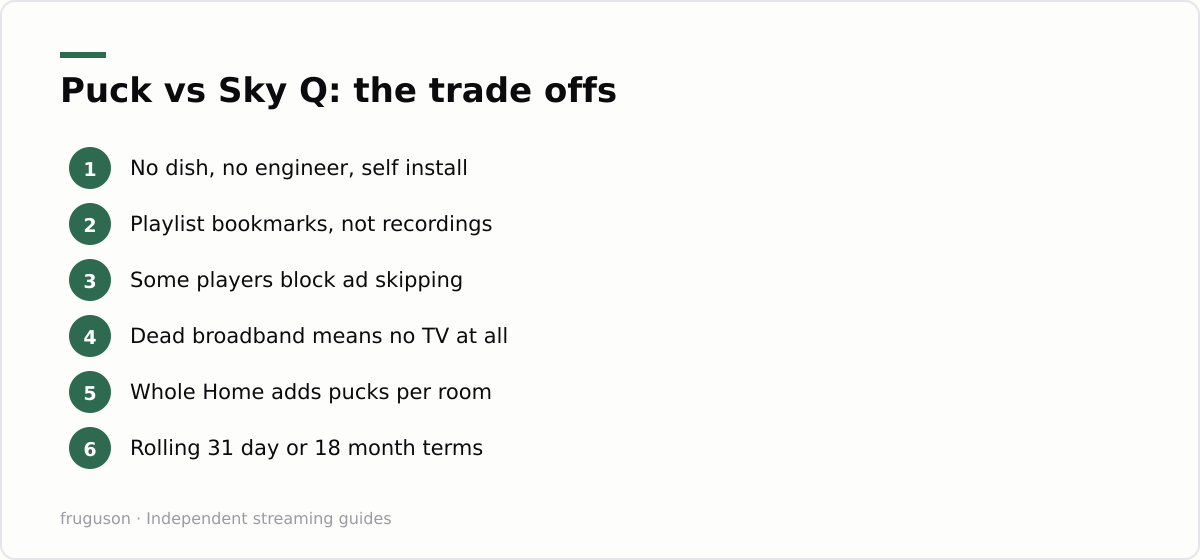
Any honest Sky Stream review reaches the same fork: this is Sky without dish hardware, and the price of that convenience is recordings. There is no hard drive. Playlist saves pointers to shows, then streams them on demand, which works brilliantly right up until it does not. Some programmes leave their catch-up windows and quietly vanish from your list. Others play through an ad supported player where fast forward is disabled, so you sit through breaks that a Sky Q box would let you skip inside its own recordings. Whether that matters depends entirely on how you watched telly before.
| Feature | Sky Stream puck | Sky Q |
|---|---|---|
| Installation | Plug in yourself, broadband only | Engineer visit and satellite dish |
| Recordings | Playlist bookmarks, streamed on demand | True recordings stored on the box |
| Ad skipping | Blocked on some on demand players | Free skipping within your recordings |
| Internet outage | Nothing works until service returns | Live satellite channels carry on |
| Multi room | Extra pucks via Whole Home | Mini boxes linked to the main box |
| Availability | Any decent broadband line | Needs a clear signal path for the dish |
That internet outage row deserves a beat of thought. A dish keeps delivering live channels when your broadband dies; the puck becomes a paperweight until service returns. Households on flaky connections should weigh that honestly before committing.
Rolling versus 18 month terms
Payment comes in two flavours. An 18 month contract takes the lower monthly price in exchange for commitment, with early exit fees if you bail partway. The rolling option costs a few pounds more each month, checked July 2026, and lets you walk away with 31 days notice. Entry packages have hovered broadly in the £25-35 a month band before extras such as UHD or Sky Sports, though every figure here is provisional and the order page is the only number that counts. Rolling suits renters especially, along with anyone testing whether streaming Sky actually fits their household. If this purchase is part of a bigger plan to ditch satellite entirely, our guide to cancelling the dish and switching to streaming maps the timing so you avoid paying for both services at once.
The verdict, and where to go next
Fifteen minutes is a fair estimate, and the harder question is rarely the install itself but whether the service earns a permanent slot in your home. My take: if your viewing already leans on catch-up and on demand, the recordings gap will barely register, and the flexibility of a rolling term beats anything a satellite contract offers. Heavy recorders and committed ad skippers should think twice, as should rural homes on shaky lines. Test it on a rolling month, use it hard for a few weeks, and let real behaviour decide. If it sticks, tidy things up properly: run cable where cable can go, and position your router with intent. Anyone still weighing the wider market should read our comparison of the best IPTV services in the UK, which puts Sky’s offering next to Freely, Now and the other licensed players so you can judge it in context.
Frequently asked questions
Do I need a satellite dish or an engineer for Sky Stream?
No. The puck installs itself: plug it into a spare HDMI port, connect it to your broadband over wifi or ethernet, then sign in with your Sky iD and it activates against your subscription. Most people are watching within about 15 minutes, with no dish on the wall and no engineer visit to book.
Can the Sky Stream puck record programmes like Sky Q?
No, there is no hard drive and no true recording. Playlist bookmarks shows and streams them on demand from the relevant service. Some titles disappear when catch-up windows close, and a few play with unskippable ads.
How fast does my broadband need to be for Sky Stream?
Sky's guidance has generally been a minimum of around 10 Mbps per puck, with more headroom for UHD viewing. Multiply that by the number of pucks streaming at once. Test the speed where the TV sits, because wifi performance drops with distance and walls.
Summarize this post with:
Follow How To Watch Streaming on Google News so you never miss a new guide.



Leave a comment