IPTV on a Windows PC: Watch UK TV on Your Computer
Every major UK streaming service runs in a browser, so your Windows computer is a ready-made telly. Here is the proper, no-nonsense way to watch.
Contents
- What IPTV on PC actually means
- The browser-first route that works on every laptop
- Signing in without the faff
- Getting the sharpest picture
- Free live channels without a subscription
- Official Windows apps worth installing
- Second-screen and multi-monitor setups
- Fixing common playback problems on Windows
- Browser, app or HDMI: which to pick
- Where to point your next click
Your Windows machine is already a capable telly. Every major UK streaming service runs in a browser, which means IPTV on PC is less about clever software and more about knowing which tab to open. This guide stays aboveboard and stays simple. It covers the browser-first route that works on any laptop or desktop. After that come the few official Windows apps worth installing and the second-screen tricks that turn a spare monitor into a live channel. Everything runs through a browser or an official app you already trust.
What IPTV on PC actually means
People throw this phrase around loosely, so let us pin it down. IPTV just means television delivered over the internet rather than an aerial or a satellite dish. When you open ITVX in Chrome and press play on a live channel, that is IPTV on PC, plain and ordinary. The word is often used loosely in adverts, yet the technology underneath is the very same one that BBC iPlayer and Sky Stream rely on every day.
On a computer the delivery splits into two camps. Most people will watch live TV in browser, using the official website of each broadcaster. A smaller group installs a dedicated app from the Microsoft Store. Both are licensed. Both are safe. The difference comes down to comfort rather than capability, and you can mix the two freely.
The browser-first route that works on every laptop
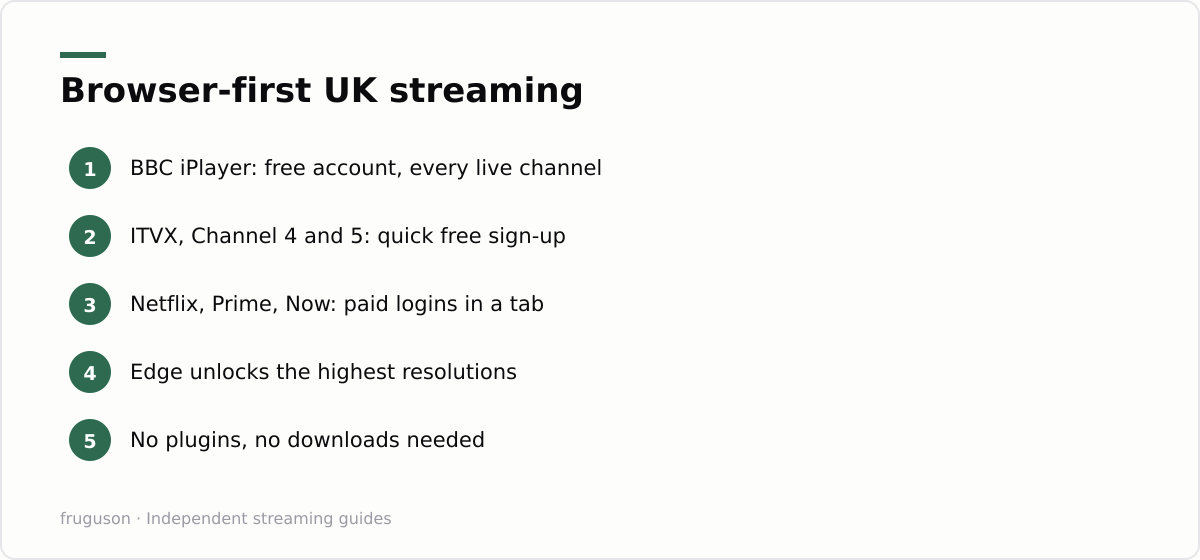
Start here, because it needs nothing beyond software you already own. Chrome, Edge and Firefox all play the UK services without a single plugin. Open the site, sign in, press play. That is the entire setup.
BBC iPlayer is the obvious first stop. Head to the official player at https://www.bbc.co.uk/iplayer, sign in with a free BBC account, and every live channel plus the full archive sits in front of you. ITVX behaves the same, and so do Channel 4 and 5. Each one asks for a quick free registration, then streams at up to 1080p on a decent connection.
Paid services behave identically. Netflix, Prime Video, Now, discovery+: all of them run inside the same browser window, no app required. Sky Stream customers can reach a good chunk of their content through the web too. Want to watch TV on laptop screens dotted around the house? The browser is the great leveller: one login works on the kitchen laptop and the study desktop with nothing to install on either.
This browser-first path is the backbone of IPTV on PC for most households, and it scales to as many machines as you own.
Signing in without the faff
Just one BBC account covers iPlayer across every device you own, so set it up once and forget it. Browsers remember logins if you let them, which turns the second visit into a single click. Keep the passwords in your browser’s manager or a proper password app rather than a sticky note on the monitor. If you share the PC, a separate Windows user account keeps everyone’s watchlists and logins apart.
Getting the sharpest picture
One quirk trips people up. A few services send their best picture only to certain browsers because of the copy-protection layer they use. Edge on Windows tends to unlock the highest resolutions for the likes of Netflix, while Chrome sometimes caps a notch lower. If a stream looks soft, open the same page in Edge before you blame your broadband. Wired connections and a quick speed test rule out most of the rest.
Free live channels without a subscription
Not every channel needs a paid login. A clutch of ad-supported services stream free and licensed, and they run happily in a Windows browser. Pluto TV offers scores of themed live channels with nothing to pay. Samsung TV Plus and The Roku Channel do much the same, mixing live streams with a catch-up library. Rakuten TV adds free films alongside its rentals. Freely, the newer streaming home for the main UK broadcasters, brings their live channels together in one guide, though its app is smart-tv first, so on a computer you will still lean on each broadcaster’s own site. None of these ask for card details, which makes them a sensible first port of call before you pay for anything. For live sport the free tier is thinner, and you will usually need Now, Prime Video or discovery+ for the big fixtures, all of them licensed and all of them playable in the browser.
Official Windows apps worth installing
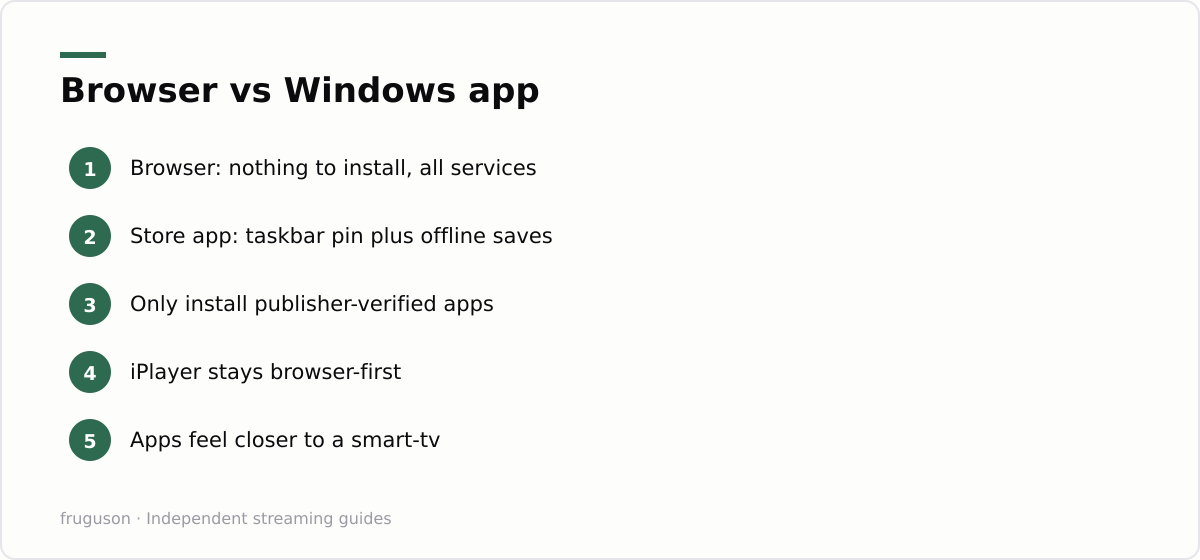
Browser access covers everything, yet some people prefer a dedicated window that lives in the taskbar. This is where Windows streaming apps earn their place. The Microsoft Store carries official builds for several of the big names, and they behave more like the app on a smart-tv than a website does.
Netflix, Prime Video and Now all offer Store apps. They add tidy extras: pinned tiles on the Start menu, offline downloads on Netflix, plus a full-screen picture at one keypress. BBC iPlayer has drifted in and out of the Store over the years, so the browser stays the dependable route for iPlayer on a computer. Check the publisher name before you install anything. Only grab apps published by the broadcaster itself, never a third party promising bundled channels for one low fee.
Downloads are the real reason to bother. An offline Netflix film, saved through the Store app the night before, plays on a train with no signal at all. A browser tab cannot manage that. For everyone else, the app is a matter of taste rather than need, and you lose nothing by skipping it.
Second-screen and multi-monitor setups
A PC has one trick a television cannot match: several things at once. Drag a live channel onto a second monitor, shrink it into a corner, and carry on working on the main display. Windows makes this painless. Snap the browser window to one side with the Windows key and an arrow, or shove it fully across onto the second screen.
Picture-in-picture is the neat version. Chrome and Edge both let you pop a playing video into a small floating panel that hovers above every other window. Look for the picture-in-picture button on the player, or right-click the video to reveal it. Now the football sits quietly in the corner while your spreadsheet fills the middle of the screen.
Two keystrokes make the whole thing feel slicker. The Windows key with the left or right arrow snaps a window to half the screen. The Windows key with Shift and an arrow throws it onto the next monitor. F11 in most browsers goes full-screen and back. Learn those and juggling a live stream stops feeling fiddly.
For a proper lounge feel, plug the computer into a telly over HDMI and treat the big screen as a second display. The laptop keyboard becomes your remote. This is the cheapest way to get computer streaming onto a large panel without buying a separate box, though a dedicated stick is tidier for daily use. Our smart-tv setup guide covers that side if you decide the telly deserves its own hardware.
Fixing common playback problems on Windows
Most streaming glitches on a PC come down to three culprits, and all three are quick to rule out. The first is the browser itself. A service that plays as a black rectangle with sound, or refuses to load past the spinner, usually has a copy-protection mismatch: update the browser to the latest version, and if that fails, try the same page in Edge, which handles Windows copy protection most reliably. Clearing the site’s cookies clears a surprising number of “this content is unavailable” errors too.
The second is your graphics setup. Browsers lean on your GPU to decode video, so an out-of-date graphics driver shows up as stutter, tearing or a picture that drops to a lower resolution. Update the driver from the GPU maker’s site, then check that hardware acceleration is switched on in the browser’s settings. If a stream only misbehaves on a second monitor, confirm that screen is plugged in over HDMI or DisplayPort rather than an older adapter, since protected video can quietly refuse to play otherwise.
The third is the connection. Run a quick speed test, and if the numbers look fine but streams still buffer, plug into the router with an ethernet cable rather than fighting household Wi-Fi. A wired desktop almost never buffers, and it costs less than a month of any subscription.
Browser, app or HDMI: which to pick
Three routes, one licensed goal. The browser wins on zero setup and works on every service, so it suits any Windows PC in the house. A Store app adds offline saves and a taskbar tile, which pays off mostly for Netflix and for travel. Plugging into a telly over HDMI turns the whole rig into a big-screen player when you fancy the sofa. Most people land on the browser for everyday viewing and reach for the other two only when a specific need shows up.
Where to point your next click
Open Edge, then go to the BBC iPlayer site and sign in. That single action proves the whole approach in about thirty seconds, and it costs nothing. Once one broadcaster is running, the rest follow the identical pattern, and you can decide later whether any Store app deserves a permanent spot in your taskbar.
If you are also kitting out the telly in another room, the same licensed logic carries over. Our rundown of the best IPTV services UK 2026 lines up the subscriptions worth paying for, and the IPTV equipment guide covers the sticks and boxes that pair well with a computer. Pick the licensed route, keep hold of your logins, and your PC will handle UK television without a single risky download.
Frequently asked questions
Do I need special software for IPTV on PC?
No. Every major UK streaming service runs in Chrome, Edge or Firefox with no plugin or download. Official Store apps exist for a few services, but they are optional extras rather than a requirement.
Which browser gives the best streaming quality on Windows?
Edge often unlocks the highest resolutions on Windows because of how it handles copy protection, so services like Netflix can look sharper there. Chrome and Firefox still play everything, occasionally at a slightly lower cap. If a stream looks soft, try the same page in Edge.
Why does a stream play as a black screen with sound on my PC?
That is almost always a copy-protection or graphics issue. Update your browser and graphics driver first, then toggle hardware acceleration in the browser settings. On an external monitor, make sure it is connected over HDMI or DisplayPort, since protected video can refuse to play over some older adapters.
Summarize this post with:
Follow How To Watch Streaming on Google News so you never miss a new guide.


Leave a comment