Parental Controls for Streaming TV: A UK Parent Guide
A layered UK parent guide to locking down streaming TV: platform PINs, app level locks, purchase blocks, watershed quirks and the YouTube gaps.
Contents
Kids find things fast. Give a nine year old free rein on an unlocked telly and they will surface something rated 15 before your tea has brewed. The parental controls streaming services give you are genuinely useful, yet no single setting covers everything, and that gap is the bit most guides skip. A Netflix kids profile does nothing about the Fire TV home screen. A Samsung app lock does nothing inside YouTube. So this guide works through the protections in order: the TV or stick itself, then each app, then purchases and installs, then live channels, and finally the holes that nothing plugs. Budget half an hour per device and work down the list.
Layer one: lock the TV or stick itself
Start with the hardware. The platform layer sits underneath every app you install, so a PIN here protects you even where an individual service has weak options. Each of the big four platforms handles this differently, and menu names drift between model years, so treat the paths below as signposts rather than gospel.
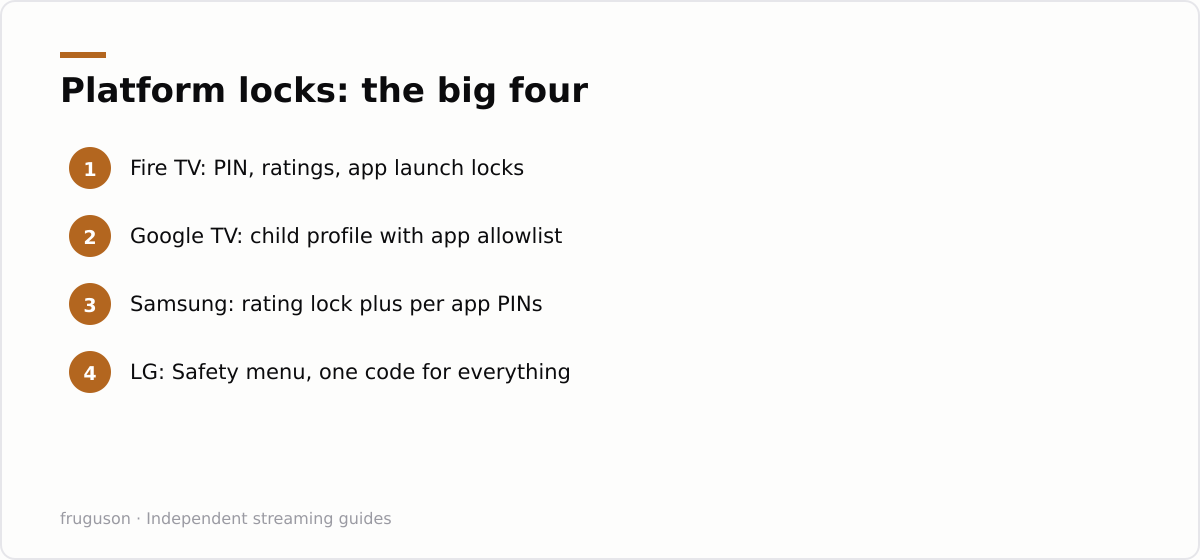
On a Fire TV stick, head to Settings, then Preferences, then Parental Controls. Switching them on forces a five digit PIN. From the same screen you can set viewing restrictions by age rating, demand the PIN before named apps will even launch, and block purchases. One caveat: the rating filter mostly governs Amazon’s own catalogue, so it is a brick in the wall, not the wall.
Google TV devices, which include Chromecast and plenty of Sony and TCL sets, take a smarter route: a proper child profile. You pick exactly which apps appear, everything else vanishes from that home screen, and screen time limits plus a bedtime cut off come built in. Escaping back to the adult profile needs your account PIN or password, which is the detail that makes it actually hold against a determined ten year old.
Samsung splits its controls in two. Programme Rating Lock, found under the Broadcasting or General menus depending on the year, gates live channels by age rating, while individual apps can be locked with a PIN from the Apps settings screen on recent models. LG gathers everything under a Safety menu instead, with TV rating locks plus application and input locks behind a single code. Change the default PIN on both brands; it is famously 0000 out of the box, and every child in Britain seems to know it.
| Platform | Where the lock lives | What the PIN covers |
|---|---|---|
| Fire TV | Settings, Preferences, Parental Controls | Ratings, app launches, purchases |
| Google TV | Child profile under account settings | App allowlist, screen time, profile exit |
| Samsung | Broadcasting and Apps menus | Channel ratings, individual app locks |
| LG | Safety menu in General settings | TV ratings, application locks, inputs |
If the telly is still at the box fresh stage, our walkthrough on how to set up streaming on a UK smart TV covers the first run choices that decide how much locking down you need later.
Layer two: parental controls streaming apps run on their own
Platform locks stop at the app door. Once an app is open, its own rules take over, which is why a second layer exists at all. The PIN lock TV apps offer varies wildly from service to service, so it pays to know which ones hold firm and which merely gesture at safety.
BBC iPlayer is the strongest of the broadcasters. Its Parental Guidance Lock lives in the app settings: switch it on, set a four digit PIN, and anything carrying a guidance label asks for that PIN before it plays. The lock is per device, so repeat it on every screen in the house. Better still, a child profile on BBC iPlayer filters the whole catalogue down to CBBC and CBeebies content, which removes the temptation entirely for younger children.
ITVX and Channel 4 lean more on guidance labels than hard locks. Both flag strong content with a warning before playback, and both offer profile or PIN options for adult rated material, though enforcement is lighter than iPlayer’s. Treat their kids sections as curation, not containment.
Netflix does this best of anyone. Each profile carries its own maturity rating; adult profiles can be locked with a PIN; specific titles can be blocked by name; and the kids profile settings hide account controls from small fingers entirely. Set all of this from a web browser under your Netflix account settings rather than on the TV, because the web interface exposes options the TV app hides. Our roundup of the best streaming apps in the UK notes which services offer proper child profiles and which just badge a kids row on the same open shelf.
Layer three: purchases and installs
Money leaks and rogue installs are the quieter risk. A child cannot stumble into an 18 rated film on a locked profile, but they can rent one, or install an app you have never vetted, unless you close those doors separately.
Purchase locks first. Amazon devices honour the same parental controls PIN for buying and renting. Google TV asks you to require authentication for purchases in the Play Store settings; set it to every purchase, not the every 30 minutes option, because half an hour is a long time in a child’s hands. Samsung and LG route buying through their own accounts, and both accept a PIN requirement at checkout.
Installs matter just as much. With Fire TV parental controls switched on, adding any new app prompts for the PIN. Google TV child profiles simply cannot install anything without a parent approving it from their own account. On other brands, look for the option to restrict apps smart TV makers bury under different names; searching the settings for the words lock or PIN usually finds it faster than browsing menus ever will. Gating installs also stops children adding unsuitable apps from outside the official store, which is a genuine bonus. Unofficial apps installed from outside the store carry no age ratings, no profiles and no parental controls of any kind, so keeping the install door shut is one of the simplest ways to protect younger viewers.
Layer four: live channels and the watershed
Live telly plays by broadcast rules. The 9pm watershed keeps adult material off linear channels until later in the evening, and that logic follows those channels into streaming services such as Freely and Pluto TV, and into the built in channel rows from Samsung and LG. It is a real protection, but a partial one. Watershed timing assumes the child is watching before 9pm, and some free ad supported channels carry weaker rating metadata, which means a platform rating lock may not know what it is looking at. Where a live app offers its own PIN for later evening content, turn it on rather than trusting the clock.
What nothing catches
Honesty time. A few gaps survive any parental controls streaming setup, and pretending otherwise is how parents get blindsided.
YouTube is the big one. Videos there carry no BBFC style age ratings, so platform rating locks pass straight through it. Restricted Mode filters some material and misses plenty more. For children under ten, the practical answer is the separate YouTube Kids app combined with a launch lock on the main YouTube app at platform level; for older kids it becomes a conversation rather than a setting. Casting is the second hole. A phone on the same wifi can often send video straight to the TV, sailing past every PIN on the telly itself, so check your set’s casting permissions. While you are in those menus, our guide to smart TV privacy settings covers the tracking toggles worth flipping in the same session. Built in web browsers on Samsung and LG sets are the third gap: hide or lock the browser app, because it ignores every content control on the device and opens the whole internet on the biggest screen in the house.
The half hour checklist
Work down this list on each device, ticking as you go:
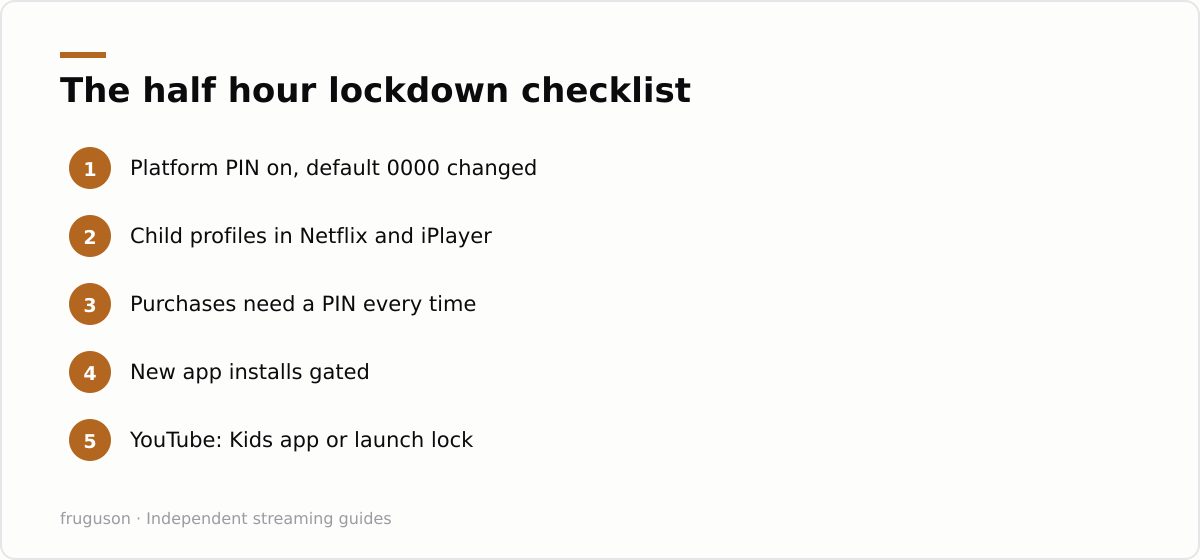
- Platform PIN on, default code changed from 0000
- Viewing restrictions set to the child’s age band
- Child profile created where the platform supports one
- iPlayer Parental Guidance Lock on, per device
- Netflix profile maturity set, adult profiles PIN locked
- Purchases set to require authentication every time
- New installs gated behind the PIN
- YouTube plan decided, Kids app or a launch lock
- Browser app hidden or locked on Samsung and LG sets
Ten minutes covers the platform items, and the rest goes quickly once you are signed in on each service. The parental controls streaming devices scatter across a dozen menus reduce, in practice, to that one short list.
Where to start tonight
Do two things before bed: the platform PIN and the YouTube decision. Those close the widest doors, and each takes under five minutes with the TV in front of you. Book the remaining items for the weekend, then set a repeating reminder for the start of each school term, because services add features, children age up a band, and a new app arrives unlocked by default. A control you set once and never revisit protects the child you had last year, not the one holding the remote tonight.
Frequently asked questions
What is the default PIN on most smart TVs and streaming sticks?
It is almost always 0000 out of the box, and children learn that fast. Change it the moment you switch parental controls on, both at the platform level (Fire TV, Google TV, Samsung, LG) and inside any app that offers its own PIN, such as BBC iPlayer's Parental Guidance Lock. A code only you know is what makes every other layer actually hold.
Can my child get around a kids profile on Google TV?
It is one of the harder setups to beat, because leaving a child profile requires the parent's account PIN or password rather than a guessable code. The child only sees the apps you approved, and new installs need approval from your account. The weak point is a phone casting to the TV, which bypasses the profile entirely.
Does the 9pm watershed protect kids on streaming apps?
Only partly. Live channel apps such as Freely and Pluto TV carry linear channels that follow watershed scheduling, so stronger material airs later in the evening. On demand libraries have no watershed at all, and some free streaming channels carry weak rating metadata, so app and platform PINs still matter.
Summarize this post with:
Follow How To Watch Streaming on Google News so you never miss a new guide.

Leave a comment