Streaming App Keeps Crashing? Fixes for Every UK Platform
A practical fix order for streaming apps that crash on Fire TV, Google TV, Samsung and LG, plus the honest cutoff where an old TV needs a stick instead.
Contents
- Why a Streaming App Keeps Crashing
- The Universal Fix Order at a Glance
- Step 1: Force Close the App, Then Reopen It
- Step 2: Restart the Device Properly, Not Standby
- Step 3: Update the Firmware, Then the App
- Step 4: Clear the Cache, Then the App Data
- Step 5: Delete the App and Reinstall It
- Step 6: Check Whether the Problem Is Even Yours
- Factory Reset: The Genuine Last Resort
- When the TV Is Too Old and the App Has Moved On
- The Verdict: Run the List Once, Then Vote With Your HDMI Port
Few things sour an evening faster than a player that dies halfway through an episode. If your streaming app keeps crashing on a smart TV or a plug-in stick, the cause is nearly always one of a handful of suspects: a hung process, stale firmware, a corrupt cache, a broken install, or an outage at the service itself. One repair sequence covers every platform sold in the UK, whether the badge says Fire TV, Google TV, Samsung or LG. Work through it from the top and stop the moment the app behaves.
Why a Streaming App Keeps Crashing
Smart TVs are weak computers wearing a nice screen. Most sets ship with less memory than a budget phone, and the operating system rarely frees it properly between viewing sessions. An app that ran perfectly at launch slowly outgrows the hardware as developers add features aimed at newer models. Caches fill with broken fragments after failed updates or power cuts. Login tokens expire in odd ways that make an app open, stall and quit. Broadcasters also push app updates on their own schedule, so a service can break on a Tuesday and quietly mend itself by Friday without you touching a thing. None of this is your fault, and almost all of it is repairable from a settings menu. The single unfixable case sits at the end of this guide: a set so old that the developer has walked away from it.
The Universal Fix Order at a Glance
Repair advice online loves platform specific tricks, but the logic underneath is identical everywhere. You start with actions that cost nothing and destroy nothing, then escalate. A forced close takes ten seconds. A factory reset eats the best part of an hour once you count reinstalling everything and signing back in. Nothing in steps 1 to 3 can lose you any data; step 4 might sign you out of one app; the later steps definitely will. Running the sequence out of order wastes an evening and can wipe settings you never needed to touch.
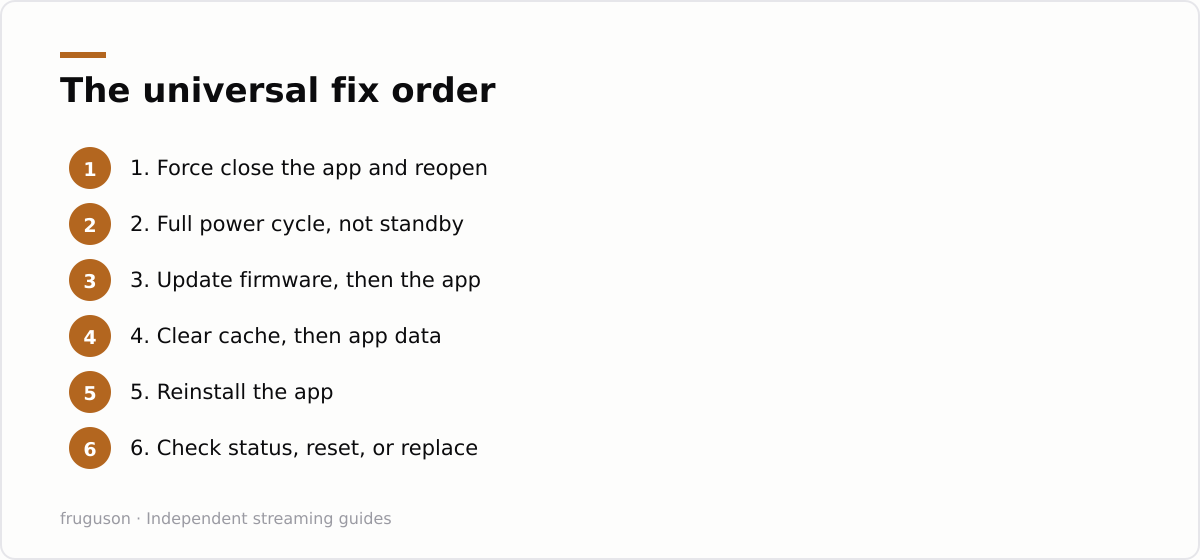
Each step below tells you where the relevant menu lives on the four big UK platforms: Fire TV, Google TV (which covers most recent Sony and Philips sets), Samsung’s Tizen and LG’s webOS. Test after every single step. The first fix that works ends the job.
Step 1: Force Close the App, Then Reopen It
The lightest fix comes first. On Fire TV, press and hold the Home button, choose the app, then pick Force stop; the same option lives under Settings > Applications if you prefer menus. Google TV works much the same way: long press the app icon, open View details, then hit Force stop. Samsung and LG keep it simpler still, since holding the Back or Exit button usually kills the foreground app outright. Reopen the app and try the exact programme that crashed before. If it now plays, the process had simply hung, which happens far more often on TVs left in standby for weeks at a stretch.
Step 2: Restart the Device Properly, Not Standby
Pressing the power button on a modern TV does not turn it off. It drops the set into standby, where apps and their memory leaks carry on living. A proper restart means cutting power completely: unplug the TV or stick at the wall and wait a full minute before plugging it back in. Samsung and LG owners can instead hold the remote’s power button until the brand logo appears, which forces a genuine reboot. Fire TV offers a restart option under Settings > My Fire TV, and Google TV keeps one under System. While the set is unplugged, restart your router as well if other devices in the house have been flaky. Two reboots cost nothing and rule out half the suspects in one pass. Plenty of crash complaints end right here, especially on sets that have not been powered down since Christmas.
Step 3: Update the Firmware, Then the App
An app built for this year’s operating system will misbehave on last year’s firmware. Check for system updates first: Fire TV under Settings > My Fire TV > About, Google TV under Settings > System > About, Samsung under Settings > Support > Software Update, and LG under Settings > General > About This TV. Turn automatic updates on while you are in there. Next, update the app itself through the platform’s store; most stores update silently in the background, but a stuck update queue is a classic cause of an app that opens once and never again. If the TV was set up in a hurry long ago, our walkthrough on how to set up IPTV on a smart TV covers the settings worth enabling from day one. Restart the device once more after any firmware install, because half-applied updates cause exactly the sort of instability you are trying to cure.
Step 4: Clear the Cache, Then the App Data
Search any TV forum and you will meet the same “clear cache TV app” advice, usually with no directions to the actual menu. The cache is a scratch pad of temporary files; clearing it deletes nothing you care about and simply forces the app to fetch fresh copies. App data is a different animal. Wiping data signs you out and returns the app to factory condition, so treat it as the second swing, not the first. If the streaming app keeps crashing after a restart and a firmware update, corrupt temporary files are the next suspect, and this is where you deal with them.
| Platform | Where the option lives | Notes |
|---|---|---|
| Fire TV | Settings > Applications > Manage Installed Applications > choose the app | Clear cache first, Clear data second |
| Google TV / Android TV | Settings > Apps > See all apps > choose the app | Same two buttons as Fire TV |
| Samsung (Tizen) | Settings > Support > Device Care > Manage Storage | Per-app cache clearing on recent models |
| LG (webOS) | No per-app cache menu exists | Delete and reinstall the app instead |
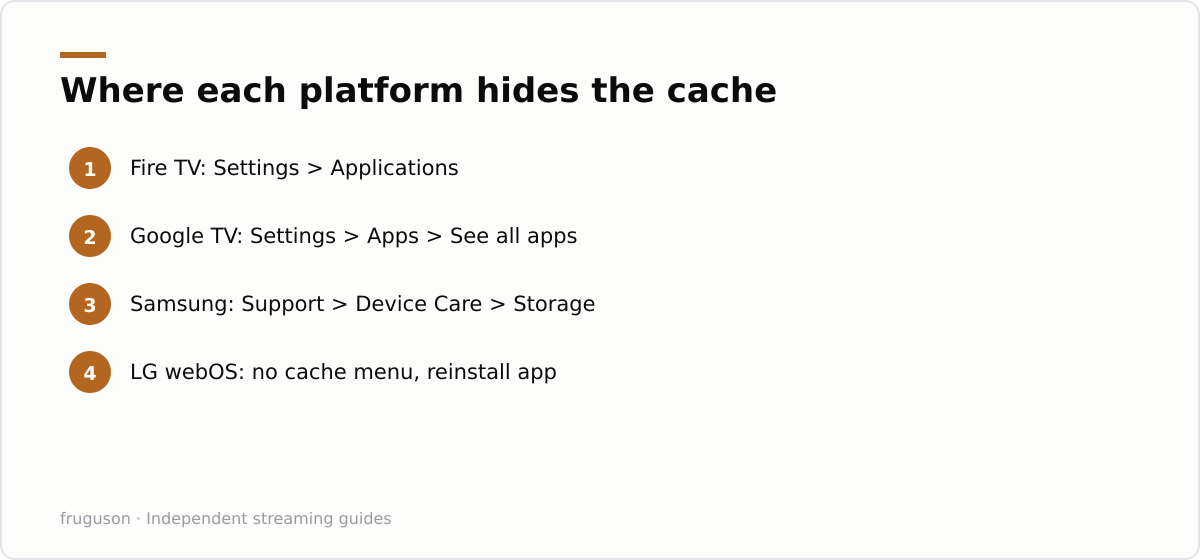
Samsung buries the option, and older Tizen sets only offer a blunt Smart Hub reset under the Support menu, which wipes every app’s sign-in at once. LG simply does not expose a cache control, which is why webOS owners jump straight to the next step. Clear the cache, test the app, then clear data only if the crashes continue.
Step 5: Delete the App and Reinstall It
A reinstall replaces every file the app owns, which catches corruption a cache wipe cannot reach. The way you reinstall TV apps varies less than you might expect: highlight the app, open its options menu, delete it, then fetch it again from the platform’s store. On Fire TV and Google TV the uninstall option sits in the same long-press menu as Force stop. Samsung hides deletion behind the Apps screen’s settings gear, while LG uses the pencil icon at the top of the app row. Sign back in once it returns and test the programme that crashed. Keep your passwords handy before you begin, because this step always logs you out.
Step 6: Check Whether the Problem Is Even Yours
Sometimes the fault is upstream. An app that crashes on millions of TVs at once has nothing to do with your living room, so check the service’s status page or its social accounts before doing anything destructive; BBC iPlayer and ITVX both publish known issues, and the big subscription services have wobblier evenings than they admit. Try a second app as a quick control test. If everything on the TV misbehaves, suspect the set or your connection rather than one app. Slow broadband usually shows up as buffering rather than crashing, but some apps do quit outright when the connection drops mid-stream, so run a speed test and compare the result with what you pay for. Ofcom publishes plain English guidance on checking and improving your broadband speed that is worth ten minutes of anyone’s time. If your symptom is stuttering playback rather than a dead app, our guide to IPTV buffering fixes is the better read.
Factory Reset: The Genuine Last Resort
Reach this step only when a single app still crashes after a reinstall and the service itself reports no trouble. A factory reset returns the TV to the state it left the box in, wiping every app and every saved login along the way. Find it under Settings > Device Preferences > Reset on Google TV, Settings > My Fire TV > Reset on Fire TV, Settings > General > Reset on Samsung, and Settings > General > Reset to Initial Settings on LG. Budget a spare hour for the rebuild afterwards. Photograph your picture settings first, because you will not remember them. If the same app still dies after a clean reset on current firmware, the problem is not inside your house, and no amount of resetting will change that.
When the TV Is Too Old and the App Has Moved On
There is a point where honesty beats optimism. Streaming services quietly withdraw support for older sets every year, and once a developer stops building for your platform, no fix on this page will bring the app back for good. If you have typed “app not working smart TV” into a search engine and your set dates from around 2016 or earlier, withdrawn support is the likely answer, particularly on early Tizen and webOS models. The signs are distinctive. The app vanishes from the store or refuses to update. Sometimes the streaming app keeps crashing on launch while everything else runs fine. You do not need a new television to escape this trap. A streaming stick in a spare HDMI port replaces the TV’s dying app platform for roughly £30 to £60 (checked July 2026), and our guide to IPTV on an old TV walks through exactly that swap. The same trick rescues sets whose remaining apps have merely grown unbearably slow.
The Verdict: Run the List Once, Then Vote With Your HDMI Port
Treat this page as a checklist you run exactly once, in order. If the trouble ends at step 2, brilliant, you have spent five minutes. If you find yourself at the factory reset stage twice within a couple of months, the hardware is telling you something, and the cheapest response is a modern stick rather than another round of menus. Amazon and Google both refresh their entry-level players regularly, so even a bottom-rung device carries newer software than a mid-range TV from five years back. Whatever you choose, leave automatic updates switched on and give the set a real power cycle every few weeks. Crashes thrive on neglect. Starve them.
Frequently asked questions
Why does my streaming app keep crashing on my smart TV?
Most crashes trace back to low memory, outdated firmware or a corrupt app cache rather than the service itself. Work through a fix order: force close the app, restart the TV fully, update the firmware, clear the cache, then reinstall. If every app misbehaves at once, suspect the TV or your broadband instead of one app.
Does clearing the cache delete my account or settings?
Clearing the cache only removes temporary files, so logins and preferences survive untouched. Clearing data is the stronger option: it signs you out and resets the app to factory condition. Try the cache first and only wipe data if the crashes carry on.
When is a TV too old for streaming apps?
Services withdraw support for older sets every year, and models from around 2016 or earlier are hit hardest. If an app vanishes from the store, refuses to update or crashes the instant it opens while others run fine, support has probably ended. A cheap streaming stick on a spare HDMI port restores every major UK service.
Summarize this post with:
Follow How To Watch Streaming on Google News so you never miss a new guide.

Leave a comment